 Microsoft
Cool Windows 11 Features That May Make You Love…
Microsoft released the Windows 11 operating system (OS) over a year ago. It was largely well-received as stable and user-friendly. The OS is not a large departure from the Windows 10 experience. But it does offer a lot of enhancements over the older environment.
Yet with several improvements and a free upgrade for Windows 10 users, it still lags in adoption. As of November 2022, Windows 10 still owns the lion’s share of Windows PCs. It has a 69.75 percent usage share as compared to 16.13 percent for Windows 11.
People are slowly upgrading to the newer OS. But it’s natural for some to take a wait-and-see stance. They want to make sure it’s worth the time to upgrade. Additionally, no one wants to have to relearn their computer desktop.
The good news is that Windows 11 has a similar workspace feel to its predecessor. But it packs a lot of great productivity and security benefits that Windows 10 lacks.
Here are some of the coolest features in this current Windows OS. After taking a look, you may choose to go ahead and take the plunge into the Windows 11 universe.
Snap Layouts
Most people are working with more than one app open at a time. It’s not unusual to need to reference two different windows while doing side-by-side work. Switching back and forth between apps can be tedious. It’s also time-consuming.
Approximately 68% of app users say that switching between apps costs them at least 30 minutes per day. Trying to size two windows next to each other can also be frustrating. You lose the scroll bar or can’t get to the menu items unless you resize.
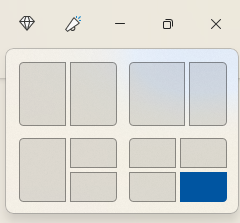
Enter snap layouts. This nifty feature in Windows 11 solves the multi-app problem. Simply hover over the maximize icon at the top of any window to get access to a snap layout.
Choose the area you want for the active app, and it will snap into place and allow you to choose apps for the other slots.
Master Search
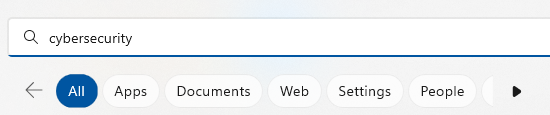
Need to find a document, website, image, or app quickly? Use the Windows 11 master search. Just click the search icon on your desktop. You’ll get a search bar that will populate results from the entered keyword.
As an added touch, Microsoft populates fun topics into the search bar daily. Learn more about James Webb Space Telescope, Coffee Day, or other fun subjects.

Once you enter your keyword, you can further refine your search. Refine it according to the type of search result you want. (apps, documents, web, etc.).
Clipchamp Video Editor
In the latest Windows 11 update, Microsoft gifted users with a free video editor. The new Clipchamp app makes it easy to edit videos. You don’t need to download any extra software.
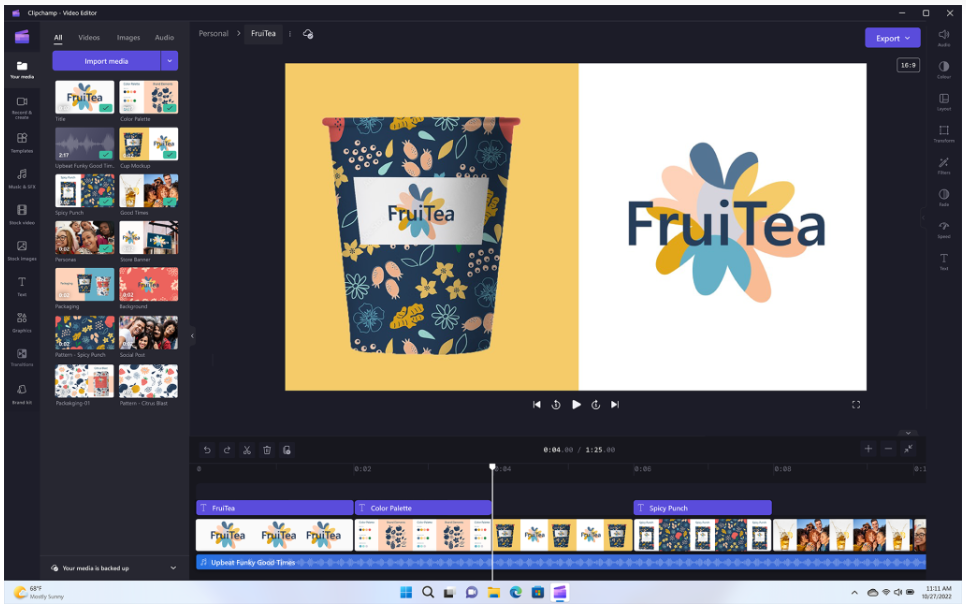
Clipchamp has a lot of the features you’d expect to have to pay for. These include templates, effects, video resizing, green screen, and more.
MS Teams Video, Audio & Text Messaging
Video calls have become the norm since the pandemic. But not all video software is easy to use. Most of us have had to wait on someone late to a call because they were struggling with the app.
Windows 11 comes with Microsoft Teams preinstalled. This gives you a simple click-to-call experience. You can easily invite someone to a video or audio call. The person does not need to have a Microsoft account to connect with you. This makes things easy on both sides.
Another great feature of the Teams app in this OS is the fact that you can use it for SMS messaging. Instead of having to drag out your phone, just text someone from your desktop.
Accessibility Features
Windows 11 has some great accessibility features. They’re designed to help ensure everyone can use their computer as they want. Those with disabilities can enjoy these features. As well as those that like the extra flexibility they offer.
Four of the newest accessibility features in the OS include:
- System-wide live captions
- Focus sessions
- Voice access
- More natural voices for Narrator, Windows’ built-in screen reader
Collections in Microsoft Edge
Microsoft Edge is the default browser for Windows. It’s worth checking out if you haven’t yet. Especially because of a feature called “collections.”
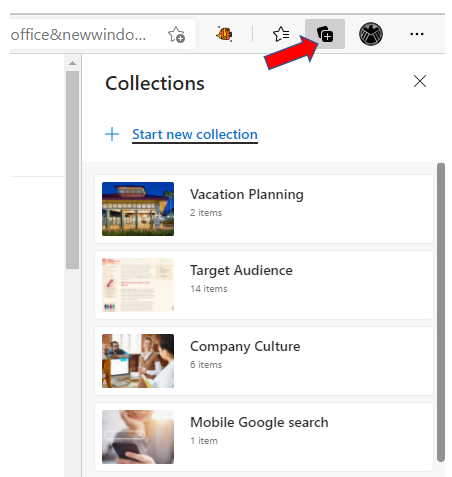
If your bookmarked favorites are becoming a mess, you’ll love this Edge capability. If you click the “plus” icon at the top of an Edge browser window, you’ll get the collections panel. Add a collection subject and click to add webpages.
You can see a preview of what you’ve added, and everything is nicely organized. Collections are easy to access and easy to delete when you’re finished with them.
Microsoft Defender SmartScreen
Phishing remains the biggest online security threat. It’s used to enable many forms of cyberattacks, from ransomware to credential theft. A significant number of phishing messages send users to malicious websites. You often don’t know until it’s too late that you’ve landed on a malware-laden site.
Windows 11 includes Microsoft Defender SmartScreen. This app helps protect you from those dangerous phishing sites. The app checks URLs in real-time against a dynamic list of reported phishing sites. It will warn you if a site is potentially dangerous.
Want an Expert to Help with Your Windows 11 Upgrade?
It can be intimidating to upgrade your system’s operating system. Why not get a pro to help? Give us a call today to schedule a chat about a Windows upgrade.
This Article has been Republished with Permission from The Technology Press.