two women with laptops IT Management

Small Business IT Budget: What to Include and How…

Summary: Your IT budget should include the technology you already use, the support required to maintain it, and the upgrades you expect to make during the year. It should also cover cybersecurity, backups, employee changes, planned projects, and a reserve for urgent repairs or replacements.

If your IT budget only covers computers, Microsoft 365, and the occasional repair, it is probably missing several costs.

Your business may also be paying for software subscriptions, cloud storage, backups, security tools, internet services, phone systems, websites, network equipment, staff training, and outside IT support.

Some of those costs appear every month. Others arrive once a year or only when equipment needs to be replaced. Without a complete budget, an annual renewal or failed computer can become an expense the business did not prepare for.

A detailed IT budget shows what you are paying for now, what will need to be replaced, and which improvements are planned for the year.

There Is No Standard IT Budget for Every Small Business

Online benchmarks often suggest spending a certain percentage of revenue on technology. That percentage may have little connection to what your business needs.

A ten-person law firm, a retailer, and a manufacturing business can have similar revenue but completely different systems. The number of employees, business locations, devices, cloud services, security requirements, and customer obligations all affect the budget.

Consider how much the business depends on each system. If losing internet access would stop customer payments, the internet connection needs more attention than it would in a business that can continue working offline. If employees work with sensitive financial or health information, security and compliance costs may be higher.

Calculate the cost of the systems your business needs first. Revenue-based benchmarks can then provide context, but they should not determine the budget.

Start With a Complete Technology Inventory

You cannot budget properly if you do not know what the business owns and pays for.

Create an inventory of computers, phones, tablets, printers, servers, network equipment, software, cloud services, websites, domains, backup systems, and phone services.

Record who uses each item, what it costs, when it renews, who manages it, and how important it is to the business. Include the supplier, contract term, billing frequency, and account owner.

The NIST Cybersecurity Framework 2.0 Small Business Quick Start Guide recommends maintaining an inventory of hardware, software, systems, and services. It also recommends recording the effect on the business if an important asset becomes unavailable.

Check invoices, company credit cards, bank statements, app stores, and department expenses. Software purchased directly by an employee may not appear in the main IT records.

The inventory may reveal duplicate services, licenses assigned to former employees, equipment that no longer receives updates, or subscriptions that no one uses.

Budget for Computers and Other Equipment

Include every physical device the business expects to purchase or replace during the year.

The cost of a new computer may also include monitors, docking stations, keyboards, headsets, webcams, carrying cases, warranty coverage, and delivery.

The device will need to be prepared before an employee can use it. Setup may include installing software, applying security settings, creating user accounts, transferring data, connecting printers, and testing access to business systems.

Other equipment may include mobile phones, tablets, printers, scanners, payment terminals, security cameras, wireless access points, network switches, firewalls, and battery backup units.

Keep a record of each device’s purchase date, warranty status, operating system, and expected replacement date. Replacing a planned number of computers each year is easier to budget for than waiting until several become unreliable at the same time.

Remember to include spare equipment. A prepared spare laptop can reduce downtime when a device is damaged or fails.

Old equipment also creates costs. Business data must be securely removed before a computer, phone, or storage device is sold, recycled, returned, or discarded.

Include Software and Cloud Subscriptions

List every subscription used by the business.

These may include email and productivity software, accounting systems, customer management platforms, industry-specific applications, electronic signature services, password managers, security software, backup services, cloud storage, device management, website hosting, and domain registrations.

Check whether each service is billed monthly or annually. Several annual renewals arriving in the same month can affect cash flow even when the monthly equivalent appears affordable.

Record the renewal date and current number of licenses. Remove licenses assigned to former employees, unused accounts, and duplicate services. Confirm whether the provider requires a minimum number of users or an annual commitment.

Allow for hiring during the year. A new employee may need more than an email license. They could also require security software, cloud backup, a business phone number, device management, and access to specialist applications.

Storage and usage charges also need attention. Some cloud services charge more when the business stores additional data, sends more messages, adds locations, or uses advanced features.

Review what is included in each subscription. Support, backup, security, data retention, and reporting may require a more expensive plan or a separate service.

Account for Employee Onboarding and Offboarding

A new employee may need a computer, accessories, software licenses, security tools, user accounts, phone services, and setup work. If the role is new, the business may also need additional storage, internet capacity, or specialist software.

When someone leaves, their access must be removed, company information transferred, equipment collected, and software licenses canceled or reassigned. The business may need to preserve email or files for operational, legal, or compliance reasons.

Contractors and temporary staff also create costs. Even when they use their own equipment, they may still need accounts, secure access, software, and support.

Estimate the expected number of new starters and departures during the budget period. Include both the technology and the work required to manage those changes.

Decide How You Will Pay for IT Support

Your business may use a managed IT provider, employ internal IT staff, pay for support when needed, or combine these approaches.

For managed IT services, confirm exactly what the monthly agreement covers. It may include help desk support, monitoring, software updates, device management, user administration, security tools, vendor support, and routine maintenance.

Ask which services are billed separately. Projects, after-hours work, office moves, major upgrades, equipment installation, and support for specialist applications may sit outside the regular agreement.

If you pay for support as needed, review the previous two or three years of invoices. Include emergency work, not just routine maintenance. Check how much was spent after equipment failures, account problems, internet outages, and security incidents.

Internal IT costs may include salaries, benefits, recruitment, training, certifications, and cover during holidays or illness. A single internal employee may still need outside help for specialist projects or serious incidents.

Set Aside Money for Cybersecurity

Cybersecurity spending should be clearly identified in the budget, even when some services are included in your software licenses or IT support agreement.

Your cybersecurity budget may include endpoint protection, email filtering, multifactor authentication, password management, device management, security monitoring, software updates, vulnerability checks, staff training, and incident-response planning.

The correct controls depend on the systems you use, the information you hold, and the damage a security incident could cause.

A business that stores customer payment details or confidential client records may need more protection than one that holds little sensitive data. Regulations, customer contracts, and cyber insurance requirements may also affect what must be implemented.

The NIST Cybersecurity Framework 2.0 covers six areas: governing cybersecurity risk, identifying important systems, protecting them, detecting incidents, responding, and recovering. Use those areas to check whether the budget covers more than preventive security software.

Not every small business needs every security product. Ask your IT provider to explain which controls are recommended, which risks they address, and whether they are already included in another service.

Include Backup and Recovery Costs

Budget for the entire backup and recovery process, not only the storage used to hold backup copies.

Costs may include backup software, cloud storage, isolated copies, monitoring, restore testing, and professional help during recovery.

Confirm what is being backed up. Important information may be stored on employee computers, servers, cloud platforms, accounting systems, websites, mobile devices, and specialist applications.

Do not assume every cloud service retains deleted or damaged information for as long as your business requires. Review the provider’s retention periods and recovery features. If those options do not meet your needs, include a separate backup service in the budget.

Backups also need to be tested. A successful backup notification shows that a task ran. A restore test confirms that the data can be recovered and used.

The UK National Cyber Security Centre recommends regularly backing up essential information and testing that it can be restored.

Allow for storage growth. If your business creates more files, emails, recordings, images, or customer records each year, backup costs may increase as well.

Budget for Internet and Network Equipment

Include your internet service, routers, firewalls, switches, wireless access points, cabling, and any support or security subscriptions attached to that equipment.

If losing internet access would stop the business from working, consider the cost of a backup connection. Compare that cost with the revenue, wages, and customer service time that could be lost during an outage.

Ask whether the backup connection uses a different type of service or supplier. Two connections may still depend on the same local infrastructure, which means one fault could affect both.

Review whether your current connection can support expected hiring, cloud applications, video calls, backups, and customer Wi-Fi. A service that works for ten employees may not be suitable after the business grows.

Network equipment requires software updates and eventual replacement. Record the support status of routers, firewalls, switches, and wireless access points. Equipment that no longer receives security updates should be scheduled for replacement.

Include installation and configuration costs. New equipment must be secured, connected to existing systems, documented, and tested before it is ready to use.

Include Phones and Communication Services

Phone and communication costs may be billed separately from other IT services, but they still belong in the technology budget.

Include business phone systems, mobile plans, phone numbers, call recording, voicemail, video conferencing, messaging, and contact-center services.

Check whether the service charges per user, phone number, call, recording, or storage amount. International calling, premium support, and additional features may create separate charges.

Include phones and headsets for new employees. If the business records calls, budget for the required storage, access controls, and retention settings.

Check when contracts end and whether equipment must be returned. Changing phone providers may also involve setup, number transfers, staff training, and temporary overlap between the old and new services.

Include Website, Domain, and Online Service Costs

These can include domain registration, website hosting, security certificates, website maintenance, software updates, plugins, backups, online forms, analytics, and email delivery services.

Confirm who owns the domain and website accounts. They should be registered to the business rather than an employee, contractor, or web developer.

Record domain renewal dates and enable appropriate renewal notifications. Losing control of a business domain can interrupt the website, email, and other services connected to it.

If the website accepts payments, bookings, or customer information, include the cost of maintaining its security and testing that it works.

Budget for Staff Training

Employees need training on the systems they use and the security risks they may encounter.

The budget may include cybersecurity awareness training, phishing simulations, training for new software, and instructions for employees who handle sensitive information or approve payments.

Training should also cover what employees must do when they receive a suspicious request, lose a device, send information to the wrong person, or notice unusual activity.

The Australian Cyber Security Centre’s Small Business Cyber Security Guide includes employee training and awareness as part of protecting a business from email attacks.

Include the time employees need to complete training. Even when the training platform is inexpensive, staff still need time during the working day to use it.

New systems may require additional training. Include that cost in the project budget instead of assuming employees will learn the software without support.

Allow for Compliance, Contracts, and Cyber Insurance

Your industry, location, customer contracts, or insurance policy may require specific technology and security controls.

Costs may include security assessments, audits, policy reviews, vulnerability testing, data-retention changes, access reviews, incident-response exercises, or independent certifications.

A customer may ask your business to complete a security questionnaire before signing or renewing a contract. Answering it may reveal controls that need to be introduced.

Cyber insurance applications may also ask about multifactor authentication, backups, endpoint protection, email security, employee training, and incident-response planning.

Review upcoming renewals and audits before approving the budget. This gives the business time to obtain quotes and complete required work.

Legal and compliance requirements differ between countries and industries. Confirm your obligations with the appropriate legal, compliance, insurance, and IT advisers.

Plan for Technology Projects

Keep planned projects separate from normal operating costs.

Projects may include moving offices, opening another location, replacing a server, changing phone systems, improving Wi-Fi, moving data to a new cloud service, or introducing a new business application.

Estimate the complete project cost. Include planning, licenses, equipment, implementation, data transfer, testing, training, temporary services, and support after launch.

Some projects require two systems to run at the same time while information is moved and employees are trained. Include that overlap in the budget.

Ask department managers what changes they expect during the year. A new service introduced by one department may require additional security, storage, integration, backup, and support work.

Business.gov.au recommends including both upfront and ongoing costs when preparing a digital budget. Check what the project will cost after the initial work is complete.

Review Supplier Contracts and Renewal Dates

Record the contract owner, renewal date, notice period, billing method, and cancellation process for each major supplier.

Some services renew automatically. Others require advance notice if you want to reduce licenses or cancel the agreement.

Check whether prices can change during the contract and whether the agreement includes minimum quantities. If the business expects to reduce staff or stop using a system, make sure the contract allows the licenses to be reduced.

Confirm how data can be exported and what happens when the service ends. A cheaper replacement may still involve migration, setup, training, and temporary overlap costs.

Do not leave important technology accounts tied to one employee’s personal email address or payment card. The business should retain access if that person leaves.

Keep a Reserve for Unplanned Costs

A laptop may be damaged, a firewall may fail, an employee may need urgent replacement equipment, or a technical problem may require work outside the support agreement.

There is no reserve percentage that suits every business. Base the amount on realistic costs, such as replacing an essential computer, obtaining emergency support, or restoring an important service.

Review unplanned IT spending from previous years. Use those figures when deciding how much to set aside.

The reserve should be separate from planned replacements. A computer already scheduled for replacement is not an unexpected cost.

Separate Recurring Costs From One-Time Costs

Recurring costs include software subscriptions, support agreements, internet services, phone systems, backup services, security tools, and equipment leases.

One-time costs include new equipment, migrations, office moves, installation work, and major upgrades.

Record annual subscriptions separately from monthly ones so that the business knows when larger payments are due.

You may also need to separate operating expenses from capital purchases for accounting and tax purposes. The rules vary by location, so confirm the correct treatment with your accountant.

How to Build Your Small Business IT Budget

  1. Create an inventory of your hardware, software, services, suppliers, and contracts.

  1. Record current monthly and annual costs, renewal dates, and notice periods.
  2. Identify equipment that needs to be replaced during the budget period.
  3. Estimate hiring, departures, new locations, and other business changes.
  4. Add support, cybersecurity, backup, training, compliance, and recovery costs.
  5. Create separate budgets for planned technology projects.
  6. Add a reserve based on realistic emergency support and replacement costs.
  7. Review the completed budget with your IT provider and accountant.

Record who approved each item and who is responsible for managing it. Review actual spending during the year instead of waiting until the next annual budget.

Review the Budget During the Year

Check the budget at least every quarter.

Compare actual invoices with the amounts expected. Look for new subscriptions, unused licenses, supplier price changes, additional storage charges, and projects that cost more or less than planned.

Update the forecast when the business hires employees, changes locations, introduces new services, or signs a contract with new security requirements.

A quarterly review also gives you time to plan for upcoming annual renewals. It is easier to compare providers or change services when the renewal deadline is still several months away.

Frequently Asked Questions

How much should a small business spend on IT?

There is no reliable percentage for every small business. Calculate the cost of the equipment, services, security, support, and projects your business needs. Industry benchmarks can provide context, but they should not replace a budget based on your operations and risks.

Should cybersecurity have a separate budget?

Cybersecurity costs should be clearly identified, even when some are included in software licenses or an IT support agreement. This makes it easier to see which protections are funded and which improvements still require approval.

How often should the IT budget be reviewed?

Review it at least annually when preparing the budget and quarterly during the year. Update it after significant hiring, office moves, new systems, supplier changes, or new compliance requirements.

Should equipment purchases and monthly services be combined?

Include both in the overall IT budget, but record them separately. This makes recurring operating costs easier to distinguish from one-time purchases and projects.

What costs are commonly left out of an IT budget?

Setup work, employee onboarding and offboarding, backup testing, staff training, security reviews, equipment disposal, project work, subscription increases, and urgent replacements are commonly overlooked.

Who should prepare the IT budget?

The business owner or finance team should work with the person responsible for IT. Department managers should also provide information about hiring, new software, planned projects, and changes to business operations.

Sources and Further Reading

Ask your IT provider to review the budget before you approve it. And if you don’t have an IT provider, feel free to reach out to us and we’ll help you sort it out.

—

Featured Image Credit

This Article has been Republished with Permission from The Technology Press.
white wifi router IT Management

Why Guest Wi-Fi Should Be Separate From Your Business…

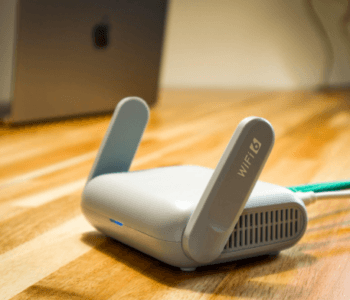
Summary: Guest Wi-Fi should provide internet access while blocking connections to your internal business network. A different Wi-Fi name and password do not confirm that the networks are separated. The router, access points, and firewall must also be configured to prevent guest devices from reaching internal systems.

Offering Wi-Fi to customers, contractors, and visitors is convenient. But their phones and laptops should not connect to the same network as your business computers, printers, security cameras, servers, and file storage.

Even when you trust the person, you do not control their device. You do not know whether it has current security updates, whether it contains malware, or who else has used it.

A properly configured guest network gives visitors internet access without allowing their devices to communicate with your business systems.

What Separate Guest Wi-Fi Means

When someone connects to your guest Wi-Fi, they should be able to browse the internet, use email, and access online services. They should not be able to connect to anything on your internal network.

That includes:

  • Business computers and servers
  • Network printers
  • File storage and backup devices
  • Security cameras
  • Building access systems
  • Router and network management pages
  • Other devices using the guest network

The Australian Cyber Security Centre recommends separating an organization’s internal network from the guest Wi-Fi used by unmanaged devices.

Both networks can use the same internet connection. The settings that separate them are configured in your network equipment, such as the router, firewall, switches, or wireless access points.

Why One Shared Network Creates Unnecessary Risk

Connecting to the same network does not automatically give a visitor access to every business file. Your passwords, device security settings, and user permissions still apply.

However, a device on the same network may be able to find or contact systems that it does not need to use. This could include a printer, shared folder, storage device, camera, or poorly protected management page.

An infected device may also try to connect to other devices on the network. If the network is divided into separate sections, those connections can be blocked before they reach your business systems.

The UK’s National Cyber Security Centre explains that network segmentation restricts movement between systems. If one device is compromised, separating the network reduces the number of other systems it can contact.

Separating the networks reduces risk by blocking access that visitors and unmanaged devices do not need.

A Different Wi-Fi Name May Not Be Enough

Your business Wi-Fi and guest Wi-Fi may appear as two different names when someone opens the Wi-Fi menu on their phone. Those names are called SSIDs.

A second SSID does not confirm that the devices are properly separated. The settings behind it must place guest devices on a separate network and block access to internal systems.

Business networking equipment commonly uses a separate virtual network, known as a VLAN, for guest traffic. Firewall rules then prevent that traffic from reaching private network addresses. Some small-business routers handle this automatically when guest mode is enabled.

Cisco’s current guidance describes guest Wi-Fi as a separate SSID connected to its own VLAN, with guests limited to internet access. Its small-office reference design also uses firewall rules to deny guest access to local networks.

The exact settings depend on your equipment. Look for terms such as:

  • Guest network
  • Network isolation
  • Deny local network access
  • Client isolation
  • VLAN
  • Guest firewall rules

If you only see a second Wi-Fi name and password, ask your IT provider to confirm what guest devices can reach.

Should Guest Devices Be Able to Connect to Each Other?

Guest devices should usually be blocked from communicating with one another.

This setting may be called client isolation, wireless isolation, peer-to-peer blocking, or Layer 2 isolation.

Without it, one visitor’s laptop may be able to contact another visitor’s device on the same guest network. Blocking those connections provides additional protection for everyone using the Wi-Fi.

Client isolation and business-network separation are two different controls. Client isolation blocks communication between guests. Network separation blocks communication between guests and your internal systems. A business guest network should normally use both.

Where Should Employee Phones and Personal Laptops Connect?

A personal phone that only needs internet access can usually use the guest network. The same applies to a personal laptop that does not need to connect to internal business systems.

If employees use personal devices to access company files, applications, or internal systems, the business needs a clear bring-your-own-device policy. Those devices may require security software, device management, encryption, and specific access rules.

An employee-owned device should not receive unrestricted network access unless the work requires it.

Company-owned and managed devices can use the business network if they need access to internal resources. Personal and unmanaged devices should use a restricted network unless there is a business reason to provide additional access.

What About Smart TVs, Cameras, and Other Connected Devices?

Smart TVs, speakers, cameras, thermostats, digital displays, and similar products often need internet access but do not need to communicate with your computers.

These devices can be placed on a separate network for connected devices. Some smaller businesses use the guest network for this purpose, although that may not work if the devices need to communicate with a controller, phone, or local recording system.

The right setup depends on how the devices work. A smart TV or security camera should not be able to reach business computers just because it uses the same router.

CISA’s network-segmentation guidance notes that separate networks can be used for guests, connected devices, personal computers, and work computers.

How to Check Your Guest Wi-Fi

Use these five checks to confirm that the network is set up correctly:

  1. Check which devices use each network. Business computers and other managed equipment should use the business network. Visitors and unmanaged devices should use the guest network.
  2. Confirm that local network access is blocked. Guest devices should not be able to connect to printers, file storage, cameras, servers, or network management pages.
  3. Check whether guest devices are isolated from each other. Enable client isolation or the equivalent setting if your equipment supports it.
  4. Review the Wi-Fi security settings. The Australian Cyber Security Centre recommends WPA3, WPA3 transition mode when compatibility is required, or WPA2 when WPA3 is unavailable. Use a guest password that is different from your business Wi-Fi password.
  5. Check the router and access points. Install current firmware, enable automatic updates when supported, replace default administrator credentials, and replace equipment that no longer receives security updates.

Test the guest network again whenever the router, firewall, switches, or wireless access points are replaced or reconfigured.

Do You Need a Separate Internet Connection?

Most small businesses do not need to pay for a second internet connection just for visitors.

A suitable business router or firewall can use one internet connection while keeping the internal and guest networks separate. The guest network can also have its own speed limit so that visitor traffic does not use all the available bandwidth.

Very small or older routers may not support proper isolation. Some provide a guest Wi-Fi option but offer limited control over what guests can access. Check the manufacturer’s documentation or ask your IT provider to test the configuration.

Keep the Guest Password Separate

Do not use the same password for your guest and business Wi-Fi networks.

Sharing the business password with visitors makes it harder to control who can reconnect later. It also means changing the password on every company device if the password needs to be replaced.

A separate guest password can be changed without disconnecting business equipment. Change it when too many people know it, after a large event, or when a contractor no longer needs access.

The password protects access to the guest network. It does not replace network separation.

Frequently Asked Questions

Is a guest Wi-Fi password enough to protect my business network?

No. The password controls who can connect to the guest Wi-Fi. Your equipment must also block guest devices from reaching the internal business network.

Can guests use the same internet connection as employees?

Yes. The networks can share one internet connection while remaining separated inside the router, firewall, and wireless equipment.

Should employees connect their personal phones to guest Wi-Fi?

If the phones only need internet access, the guest network is usually the safer option. Devices that need access to company systems should follow your business’s device and access policies.

Can visitors use a network printer?

Guest access to printers should normally be blocked. If visitor printing is necessary, your IT provider can set up a controlled method without giving guests access to the rest of the business network.

Does guest Wi-Fi prevent cyberattacks?

No. It reduces unnecessary access and can limit how far a compromised device can reach. Your business still needs secure passwords, multifactor authentication, software updates, endpoint protection, backups, and appropriate access controls.

Sources and Further Reading

Ask your IT provider to confirm that your guest Wi-Fi is properly separated from your business network. And if you don’t have an IT provider, feel free to reach out to us and we’ll help you sort it out.

—

Featured Image Credit

This Article has been Republished with Permission from The Technology Press.

laptop with storage device plugged in Cloud

What Happens to Your Data When You Cancel a…

Summary: Before canceling a cloud service, export your data and confirm that the files can be opened or imported. Move any connected applications and sign-ins, then check the provider’s current rules for access, billing, retention, and deletion.

A cloud service may hold years of customer records, documents, emails, invoices, project history, or staff activity.

If you cancel before moving that information, employees may lose access before the business has a usable copy. Some providers give administrators more time to retrieve data. Others restrict access or begin deleting information after cancellation.

The rules depend on the service, subscription, contract, and how the account was purchased. Check the provider’s current terms before setting a cancellation date.

What can happen after you cancel

Canceling a subscription may stop employees from signing in, make applications read-only, or leave data available only to administrators. Some services begin a retention period before deletion, while others remove data sooner.

Billing may also continue until the end of an annual or fixed-term contract. Canceling through a reseller may follow a different process from canceling a subscription purchased directly from the software company.

Microsoft 365 business subscriptions pass through several lifecycle stages after they end. Access and timing depend on how the subscription was purchased. Microsoft advises customers to back up their information before it is deleted. Microsoft 365 subscription guidance

Google also tells Workspace customers to export the information they want to keep before canceling. Its guidance states that third-party application data is not automatically deleted when a Workspace subscription is canceled. Google Workspace cancellation guidance

Check the rules for the service you are canceling instead of relying on a general retention period.

Check the provider’s cancellation rules

Read the provider’s current documentation and your contract before you cancel.

Confirm when employee access will stop and whether administrators will still be able to retrieve data. Check how long the information will remain available, what the export includes, and whether the export must be requested before cancellation.

You should also confirm whether the account can be reactivated, when billing stops, and what steps are required to delete the account. Ask whether the provider will confirm the deletion in writing.

Contact the provider if its published documentation does not answer these questions. Keep a copy of the response with your cancellation records.

If the service was purchased through a reseller or IT provider, ask them to confirm the process and the final date of access.

Export all the information your business needs

Start by identifying what the service contains. Depending on the application, this could include customer details, documents, attachments, emails, calendar entries, invoices, support tickets, project history, reports, or audit records.

Do not assume the standard export includes everything. Some services export the main records but leave out attachments, comments, user permissions, deleted items, application settings, automation rules, or activity history.

Read the provider’s export documentation so you know what will be included. Contact the provider if important information is missing from the standard export.

Use a business-owned administrator account to request and download the files. Store them somewhere controlled by the business rather than leaving the only copy in an employee’s personal downloads folder.

Large exports may take time to prepare. Start early enough to investigate missing files or failed downloads before access ends.

Test the files before canceling

Open a sample of every file type you exported. Check that attachments are present, dates are correct, and text can be read. Look for broken links, incomplete records, or files with no clear connection to the customer or project they belong to.

If you are moving to another service, test the import before canceling the old one. Check names, contact details, dates, notes, attachments, custom fields, open tasks, historical transactions, and user permissions.

A CSV file may contain the words and numbers while leaving out the relationships between records. For example, customers and invoices might appear in separate files without preserving the links between them.

Import a small set first. Ask employees who use the system to check the result before the remaining information is moved.

Check connected applications and sign-ins

Cloud services often exchange information with other systems. A website form may send enquiries into the service you are canceling. Your accounting software may import invoices from it. Reports, email campaigns, payment notifications, and scheduled tasks may also rely on that connection.

List the systems that send information into the service and those that receive information from it. Include mobile apps, browser extensions, automated workflows, API connections, file storage, calendars, and reporting tools.

Move or disable each connection before the account closes. Test the replacement process to confirm that new records arrive in the correct place and scheduled tasks still run.

Employees may also use the service to sign into other applications. This happens when they choose options such as “Sign in with Google” or “Sign in with Microsoft.”

Add another sign-in method before canceling the original service. Confirm that the business controls the administrator and recovery details for every connected account.

After the move is complete, revoke old access tokens, API keys, and application connections.

Keep the records your business is required to retain

Your business may need to keep financial records, contracts, customer communications, consent records, project files, or employee information for a set period.

The requirements depend on the type of information, your industry, your contracts, and the countries where you operate. Speak with your accountant, legal adviser, or compliance specialist before deleting records that may need to be retained.

Document what was exported, when it was downloaded, who checked it, and where it is stored. Keep the cancellation confirmation, final invoice, and any written response from the provider about deletion.

Set a retention period for the exported files. Delete them securely when the business no longer needs them.

Ask how the provider will delete your data

Canceling a subscription and deleting an account may be separate actions.

Ask what will happen to active customer data, deleted records, backups, audit logs, account information, billing records, and support tickets. Confirm whether any subcontractors also store or process your information.

A provider may remove information from its active systems before the same information ages out of protected backups. Those backup copies may remain until the provider’s normal backup retention period ends.

The provider may also need to retain some information for billing, fraud prevention, security, or legal reasons. Ask what will remain, why it will remain, and when it will be deleted.

The NCSC recommends making sure supplier contracts state how information and assets will be returned or deleted when a contract ends or moves to another supplier. NCSC supply chain guidance

For important systems, request written confirmation when the account and customer data have been deleted.

How to cancel a cloud service without losing your data

1. Choose an owner and set the dates

Give one person responsibility for the move. Review the contract and allow enough time for exporting, testing, training, and fixing any failed connections.

2. Record what uses the service

List the information stored in the service, the employees who use it, and every application connected to it. Check whether employees use the account to sign into other services.

3. Export and store the data

Use the provider’s administrator export tools. Save the files in a business-controlled location and protect them according to the type of information they contain.

4. Test the export and the replacement

Open the files and check the information. Import a small set into the replacement service and ask employees to confirm that the records are correct.

5. Move connected services and employees

Update forms, automated processes, reports, sign-in methods, and integrations. Give employees access to the replacement and test the work they perform every day.

6. Cancel the subscription

Cancel after the data and business processes have been checked. Save the confirmation, final invoice, and provider correspondence.

7. Remove old access and confirm deletion

Revoke old integrations and remove unneeded user accounts. Ask the provider to confirm what will be deleted, what it must retain, and when the deletion will be completed.

Frequently asked questions

How long will a cloud provider keep our data after cancellation?

There is no standard period. It may depend on the provider, service, plan, contract, purchase method, and reason the account ended.

Check the current documentation and obtain written confirmation for important systems.

Is a data export the same as a backup?

An export can provide a retained copy when it contains the information you need, can be opened, and is stored securely.

Some exports leave out settings, permissions, relationships, audit records, or unsupported file types. Test the files before relying on them.

Can we reactivate the service later?

Some providers offer a reactivation period. Others do not guarantee recovery after cancellation or deletion.

Export and test your information before canceling.

What if the provider closes the service?

Keep current exports of important information while the service is active. You may have little time to move if a provider closes, sells the product, or ends the service.

Will cancellation stop billing immediately?

That depends on the contract. Monthly plans, annual commitments, reseller agreements, and fixed-term subscriptions may use different billing rules.

Confirm the final payment and service date before approving the cancellation.

Sources and further reading

Before canceling a cloud service, ask your IT provider to check the export, connected applications, and employee sign-ins.

And if you don’t have an IT provider, feel free to reach out to us and we’ll help you sort it out.

—

Featured Image Credit

This Article has been Republished with Permission from The Technology Press.

lady holding phone while working on a laptop IT Management

Should Employees Use Personal Devices for Work?

Summary: Allow personal devices only for approved work, through approved apps, and when the device meets your security requirements. Use company-owned devices for administration, sensitive work, or jobs that require large amounts of data to be stored locally.

Employees often use personal devices for work before the business has made a decision about it. They add work email to a phone, download a file to a home laptop, or sign into a company app from a computer shared with family.

Once business data is stored on a personal device, you have less control over updates, installed apps, backups, and who else uses the device. You also need a way to remove company data when the employee leaves or the device is lost.

Personal devices can be allowed, but the business should decide which devices, applications, and types of work are permitted.

What BYOD includes

Bring your own device, usually shortened to BYOD, means an employee uses a personally owned phone, tablet, or computer for work.

That can include:

  • Adding work email to a personal phone
  • Signing into Microsoft 365 or Google Workspace
  • Joining online meetings
  • Opening customer or company files
  • Using a business messaging app
  • Accessing accounting, CRM, or project management software
  • Downloading documents to a personal computer

Depending on the application, business information may remain in the cloud or be downloaded to the device as messages, attachments, cached data, or files.

What you cannot fully control on a personal device

Your IT team can set and monitor security on company-owned devices. With personal devices, employees choose which apps to install, when to update the operating system, who else uses the device, and where files are backed up.

Management software can enforce some rules, but the available controls depend on the device, operating system, application, and enrollment method.

Other people may use the device

An employee may share a home computer or tablet with a partner, child, or another family member. Separate user accounts can reduce the risk, but many personal devices are used through one shared account.

The UK National Cyber Security Centre says BYOD access should not be permitted when an employee cannot follow the required security rules. Its example includes a device that cannot keep the employee’s work separate from other family users. NCSC BYOD guidance

Updates may be missing

Your IT provider may not be able to confirm whether a personal device runs a supported operating system or has current security updates.

An employee may delay an update because the device lacks storage, an older application might stop working, or the device is rarely restarted.

Business files may enter personal storage

A file downloaded from work email or cloud storage may remain in the Downloads folder, a personal document folder, or a device backup.

A personal cloud backup service could then copy the file to an account the business does not manage. Opening the document in a personal application may create another unmanaged copy.

Other applications may access business information

Personal devices contain applications chosen by the employee. Some may have permission to read files, contacts, browser activity, or information copied to the clipboard.

The business may not know which applications are installed or what those applications can access.

Repairs can expose business data

A broken personal phone or laptop may be taken to a repair shop chosen by the employee. Business email, saved sessions, or downloaded files could still be available on the device.

Your policy should tell employees who to contact before a device is repaired and what to do if the device cannot be opened.

Company data may remain after employment ends

Disabling an employee’s account stops future access to many cloud services. It does not remove copies that were downloaded to personal folders, opened in unmanaged applications, or copied to personal storage.

Managed work profiles and protected applications make it easier to remove company data. They can only remove the information they control.

Decide what work is allowed

Set access based on the work being performed and the information involved.

You might allow employees to read work email through an approved mobile app while requiring a company computer for customer database exports. Staff handling financial records, health information, legal documents, or large amounts of customer data may also need company-owned devices.

Administrative work should be performed from a managed device. Anyone responsible for user accounts, security settings, backups, or business systems should not do that work from an unmanaged personal computer.

Apply the same rules to contractors. Their access should be limited to the applications and information required for their work.

Security requirements for personal devices

A personal device should meet your requirements before it can access company information.

Use a supported operating system

The device should run an operating system that still receives security updates. Block access from devices that can no longer install current updates.

Install security updates

Operating system and application updates should install automatically where possible. Employees should restart their devices when an update requires it.

Require a screen lock

Require a PIN, password, fingerprint, or facial recognition to unlock the device. Configure the screen to lock automatically when the device is not being used.

Require device encryption

Encryption helps protect stored information if a device is lost or stolen. The Australian Cyber Security Centre recommends full-device encryption when personal devices may store business information. Cyber.gov.au BYOD guidance

Encryption must be enabled before the device is lost. It also needs to be supported by a strong device password or PIN.

Require MFA

Require MFA for work email, cloud storage, and other important systems. The NCSC recommends MFA as a minimum for BYOD access.

Use MFA for account sign-ins. Protect downloaded information with encryption and managed applications.

Block rooted or jailbroken devices

Rooting or jailbreaking removes some of the operating system’s built-in restrictions. These devices should not be allowed to access company data.

Detection is not perfect, so it should be used with the other security controls in this article.

Approve the applications used for work

Tell employees which applications they may use for email, messaging, file access, and other work.

Where your management service supports it, prevent business information from being saved to personal storage or copied into unmanaged applications.

Use separate accounts on shared computers

A personal computer used for work should have a separate account for the employee. Other users should have their own accounts and should not know the employee’s password.

Do not allow BYOD access when work cannot be kept separate from other users of the device.

Tell employees how to report problems

Employees need to know who to contact if a device is lost, stolen, repaired, replaced, or infected with malware.

Early reporting gives the business more time to disable access, check account activity, and remove managed data.

Control business data with managed apps or work profiles

Device and application management services can help keep work information separate from personal information.

Mobile device management, or MDM, can apply settings to an enrolled device and report whether it meets company requirements. The amount of control depends on the platform and enrollment method.

Mobile application management, or MAM, applies controls to supported work applications and their data. Depending on the product, it may restrict copying, block saving to personal storage, require another PIN, or remove company information from managed apps.

For example, Microsoft Intune can remove company data from protected applications when a device is lost or an employee leaves. Personal information can remain on the device.

Selective removal only affects data managed by the service. It cannot delete a file copied into an unmanaged application, personal backup, or unsupported storage location.

A factory reset removes personal and business data. Microsoft warns administrators about the risk of applying full device management to computers and phones the business does not own. Configure selective removal where possible and tell employees exactly what your management service can see and do. Microsoft Intune planning guide

What your BYOD policy should cover

Your policy should answer these questions:

  • Which employees and contractors may use personal devices?
  • Which types of devices are permitted?
  • What work can be performed on them?
  • Which applications must be used?
  • Can company files be downloaded?
  • Can the device be shared with other people?
  • Which security settings are required?
  • What information can the business or IT provider see?
  • What settings can the business control?
  • Can company information be removed remotely?
  • What happens if the device is lost or stolen?
  • What must happen before the device is repaired or sold?
  • What happens when the employee leaves?
  • Who pays for mobile data, repairs, or replacement?

Privacy, employment, and data protection requirements vary between countries. Have the policy reviewed for each location where you employ people.

Employees should read and accept the policy before company access is added to their devices.

What to do when a personal device is lost or stolen

The employee should contact the business or IT provider as soon as possible.

Your response may include:

  1. Disabling access if the device cannot be accounted for
  2. Revoking active sign-in sessions
  3. Removing company data from managed applications
  4. Removing the device from approved-device lists
  5. Checking account activity for unexpected sign-ins
  6. Resetting credentials if they may have been exposed
  7. Recording which company files may have been stored on the device

Remote locking and removal commands only work after the device connects to the management service. A device that remains switched off or offline may never receive the command.

Encryption and account controls are still required because remote removal might not run.

What to do when an employee leaves

Disable the employee’s account and revoke active sessions at the agreed time. Remove company data from managed applications or work profiles.

Check whether business files were downloaded to the device and confirm how those copies will be returned or deleted.

Remove the device from your approved-device records. Where your management service supports it, remove business applications, certificates, email profiles, and VPN settings.

When personal devices should not be allowed

Provide a company-owned device when:

  • The employee handles sensitive information
  • The role requires administrator access
  • Large amounts of company data must be stored locally
  • The device is shared with other people
  • The operating system is no longer supported
  • Encryption cannot be enabled
  • The business cannot separate or remove its data
  • The employee does not accept the required security controls
  • The device has been rooted or jailbroken

Company-owned devices are easier for your IT provider to support because their settings and installed software are known.

Frequently asked questions

Can employees use a web browser without enrolling their personal device?

You can allow browser access, but information may still remain in the browser cache, Downloads folder, saved passwords, screenshots, or active sessions.

Access policies can limit the devices and browsers that are permitted. Sensitive work may still require a managed device.

Is MFA enough to secure a personal device?

MFA helps protect the employee’s account. Device encryption protects stored files, while managed applications control how company information is used and copied.

You still need updates, screen locks, approved applications, and a process for lost devices.

Can the business see an employee’s personal information?

It depends on the management method. App management focuses on business applications and their data. Device enrollment can show device details and allow broader control.

Give employees a written explanation of what your IT team can see, change, lock, or remove before they enroll.

Can the business erase a personal phone?

Some enrollment methods support a full factory reset, while app-only management does not. A factory reset deletes personal information as well as company data.

Use selective removal for employee-owned devices where it is available.

Is BYOD cheaper than providing company devices?

BYOD may reduce hardware purchases, but it can add costs for management, support, security, and administration. Whether it saves money depends on the devices, applications, and work you allow.

Sources and further reading

If employees already use personal devices for work, ask your IT provider to check what they can access and whether the required controls are in place.

And if you don’t have an IT provider, feel free to reach out to us and we’ll help you sort it out.

—

Featured Image Credit

This Article has been Republished with Permission from The Technology Press.

people working on computer IT Management

Why Your Employees Shouldn’t Have Administrator Access to Their…

Summary: Employees should use standard accounts for email, web browsing, and everyday work. Administrator access should be limited to approved IT tasks and protected with a separate account.

Administrator access often starts with one request. An employee needs to install a printer, update a specialist program, or change a setting on their computer.

Giving them administrator access gets the job done. The problem is that the access usually stays after the request has been completed.

From then on, the employee can approve other software installations and make changes that would normally require help from IT. If they install the wrong program or someone takes control of their account, those permissions can also be used to change the computer.

For everyday work, employees should use standard accounts. Administrator access should be kept for tasks that require it.

What administrator access allows someone to do

An administrator has more control over a computer than a standard user.

On Windows, members of the local Administrators group have full control over the resources on that computer. According to Microsoft’s guidance on local accounts, Microsoft recommends limiting the number of users in that group.

Depending on the computer and how it is managed, an administrator may be able to:

  • Install and remove software
  • Add drivers for printers and other equipment
  • Create, change, or remove user accounts
  • Change system settings
  • Change permissions on files and folders
  • Install services that continue running in the background
  • Make changes to some security settings

Mac computers also have standard and administrator accounts. Apple says administrators can install and remove software, manage other users, and change settings. Apple recommends limiting the number of administrative users and using a standard account when administrator rights aren’t required.

Local administrator access applies to the computer itself. It is different from Microsoft 365, Google Workspace, network, or server administrator access. Those accounts may control email, cloud files, user accounts, or several systems at once.

An employee may have local administrator access to a laptop without being a Microsoft 365 administrator. Both types of access should be reviewed separately.

Why permanent administrator access increases your risk

Software launched by an employee normally starts with the permissions available to that employee.

If the software asks for administrator approval and the employee approves it, the program may be able to install system components, change settings, or affect information belonging to other users.

That matters when someone downloads a fake installer, opens a harmful attachment, or installs software from an untrusted website. The employee may think they are approving a legitimate update while giving the program permission to change the computer.

Windows uses User Account Control to ask for approval before many administrative changes. An employee signed in with an administrator account can approve the request themselves. A standard user is normally asked for credentials belonging to an administrator.

Microsoft describes the standard account as the recommended and more secure way to use Windows.

Standard accounts also reduce the number of people who can change security settings without review. Employees cannot approve every installation themselves, so IT has a chance to check the program, where it came from, and what permissions it needs.

CISA advises businesses to control local administrator access and restrict who can install software. The Australian Cyber Security Centre includes restricting administrative privileges in its Essential Eight security measures and recommends creating separate accounts for administrative work. Cyber.gov.au

Standard accounts are suitable for everyday work

A standard account can still be used for normal business tasks, including:

  • Reading and sending email
  • Using a web browser
  • Working in Microsoft 365 or Google Workspace
  • Accessing approved business applications
  • Joining online meetings
  • Printing with an installed printer
  • Opening and saving files
  • Changing personal settings that do not affect other users

Some applications can be installed for one user without administrator access. Others need administrator approval because they add drivers, services, or files in protected parts of the computer.

An employee should not receive permanent administrator access because one program needs an update. IT can approve the installation, deploy the update remotely, or use a separate administrator account for that task.

Older business applications sometimes expect the user to have administrator rights. Test those applications before changing account permissions. In many cases, IT can update the application, adjust its configuration, or grant access to the specific folders it needs.

How to manage software installations without permanent administrator access

Staff can still get software installed and updated without keeping administrator rights.

Let IT install approved software

Your IT team or provider can install the program remotely. This also gives them a chance to confirm that the installer came from the software company and that the requested version is supported.

Use managed software deployment

Businesses with managed computers can send approved applications and updates to employees without asking each person to run an installer. The available method will depend on the operating system and device management service.

Approve individual requests

An employee can contact IT when an installation requires administrator approval. IT can review the request and enter the required credentials without giving the password to the employee.

Provide time-limited administrator access

Some roles need to install or test software as part of their work. Give those employees a separate administrator account that is enabled only for the approved task, then disable it afterward.

Create a separate administrator account

Employees who regularly perform approved technical work can have a separate administrator account. They should continue using their standard account for email, browsing, and normal work.

The administrator account should only be used when a task requires the extra permissions.

Who should have administrator access?

Administrator access should be limited to people whose work requires it.

That may include:

  • Your internal IT staff
  • Your IT provider
  • An approved technical employee
  • A software specialist responsible for a particular system

Business owners should use standard accounts for their normal work too. Ownership of the company does not require permanent administrator access to every computer.

Your IT provider should keep a managed administrator account so they can support each device. The password should be protected and should not be shared with employees.

Using the same local administrator password on every computer creates another problem. If that password is stolen from one device, it may work on the others. Each computer should have a unique administrator password or use a management service that controls those passwords.

How to remove administrator access safely

Do not remove every administrator account at once. Someone still needs a working way to manage and repair each computer.

1. Check which employees have administrator access

Review the local Administrators group on every Windows computer and the administrator users on every Mac. Include old accounts, shared accounts, vendor accounts, and accounts created during the original setup.

2. Confirm why each person has it

Ask what tasks require administrator access. A clear business need should exist for every account that keeps the permission.

Needing to update one application occasionally does not require permanent access.

3. Make sure IT has a working administrator account

Confirm that your IT team or provider can sign in with a protected administrator account before removing permissions from employees.

Test the account on each device. This prevents the business from being locked out of its own computers.

4. Test important software

Check the programs each employee needs for their job. Confirm that they open, update, and work correctly when the employee uses a standard account.

Any application that fails should be reviewed before administrator access is removed permanently.

5. Change the employee’s account to a standard account

Once the computer has been checked, remove the employee from the local administrator group or change the account type.

The employee should then sign out and sign back in so the new permissions apply correctly.

6. Tell staff how to request an installation

Give employees one place to contact when they need software installed or a setting changed. Explain what information to include, such as the program name, the reason it is needed, and the official download page.

7. Review access when roles change

Check administrator access when an employee changes jobs, receives new responsibilities, or leaves the business. Include it in your regular access reviews as well.

Frequently asked questions

Can a standard user install software?

It depends on the software. Programs that only install inside the employee’s user profile may not need administrator approval. Software that changes protected system files, installs drivers, or adds background services usually requires administrator credentials.

Will removing administrator access stop employees from working?

Normal business applications should continue working. Test specialist and older applications before making the change across every computer.

Does removing administrator access stop malware?

It reduces what many harmful programs can change, but it does not prevent every attack. You still need supported software, security updates, endpoint protection, email security, MFA, and tested backups.

Should the business owner keep administrator access?

Use a standard account for everyday work. If you need administrator access for an approved task, use a separate account and keep its password protected.

Is local administrator access the same as Microsoft 365 administrator access?

No. Local administrator access controls one computer. Microsoft 365 administrator roles can control cloud users, email, files, security settings, and other parts of the company’s Microsoft environment.

Both should be limited and reviewed.

Sources and further reading

If you are not sure who has administrator access or whether your employees need it, ask your IT provider to review the accounts on your business computers.

And if you don’t have an IT provider, feel free to reach out to us and we’ll help you sort it out.

—

Featured Image Credit

This Article has been Republished with Permission from The Technology Press.

TSD Managed Services
Privacy Overview

This website uses cookies so that we can provide you with the best user experience possible. Cookie information is stored in your browser and performs functions such as recognising you when you return to our website and helping our team to understand which sections of the website you find most interesting and useful.