
person sitting front of laptop Cybersecurity

What Are Passkeys, and Should Your Business Use Them?

Article Summary: A passkey lets you sign in to an app or website using the same fingerprint, face, or PIN you use to unlock your phone or laptop, with no password to type. It’s built on a security standard called FIDO that can’t be phished, because the passkey only works on the real site and there’s no password to steal or reuse. Most major platforms and a growing list of business tools support passkeys, and Microsoft 365 includes them at no extra cost. For most businesses, it’s worth starting to roll them out, beginning with the most sensitive accounts.

Passwords are the weak point in most businesses.

People reuse them across accounts, write them on sticky notes, and type them into convincing fake login pages without realizing it.

Passkeys are the technology built to replace passwords, and they fix the parts that cause the most trouble.

A passkey lets you sign in with the same fingerprint, face scan, or PIN you already use to unlock your phone or laptop. There’s no password to type, so there’s nothing for an attacker to steal, guess, or trick out of you.

Let’s look at what passkeys are, why they’re so much harder to attack than passwords, and whether your business should start using them.

What is a passkey?

A passkey replaces your password with your device’s own security.

Instead of typing a password, you prove it’s you the same way you unlock your phone: a fingerprint, a face scan, or a PIN.

When you set up a passkey for a website, your device creates two matching keys.

The private key stays locked on your device and never leaves it.

The public key is stored by the website.

When you sign in, the site sends a challenge that only your private key can answer, your device answers it once you confirm with your fingerprint or PIN, and you’re in. The website never sees a password, because there isn’t one. This approach comes from a standard called FIDO, which Apple, Google, and Microsoft all build on.

Why passkeys are harder to attack than passwords

A password is a secret you share with the website every time you log in, and that’s exactly what attackers go after.

A passkey has no shared secret. That one difference fixes the biggest problems with passwords.

  • They can’t be phished. A passkey only works on the real website it was created for. Land on a convincing fake, and the passkey simply won’t work, so there’s nothing to hand over. That matters, because phishing is how most break-ins start.
  • There’s no password to steal in a breach. The website only keeps your public key, which is useless on its own. If the company gets hacked, there’s no password list to grab and try on your other accounts.
  • Nothing to reuse or forget. Each passkey is unique to one site and made automatically, so reused and weak passwords stop being a problem.

Older methods like text-message codes and app approval prompts can still be tricked out of people.

Where you can use passkeys already

Support has spread fast.

You can already sign in with passkeys to Microsoft, Google, and Apple accounts, plus a growing list of banks, password managers, and business tools.

Apple, Google, and Microsoft have built passkeys into their phones, laptops, and browsers, so the device in your pocket can already store and use them.

There are two types worth knowing.

A synced passkey is backed up to your Apple, Google, or Microsoft account, so it works across all your devices and you’re covered if you lose one.

 A device-bound passkey stays on a single device, like a physical security key you plug in, which is the most locked-down option and a common pick for sensitive accounts.

Should your business use them?

For most businesses, yes, and you can start small. There’s no need to switch everything overnight or drop passwords on day one.

If you use Microsoft 365, passkeys are already available through Microsoft Entra.

Staff can sign in with a passkey stored in the Microsoft Authenticator app, a security key, or their own device. Google Workspace supports them too.

They’re also just faster. Microsoft says signing in with a synced passkey takes about 3 seconds, against roughly 69 seconds for a password plus a traditional MFA code. Across a whole team, that adds up.

Here’s how you can start using passkeys:

  1. Turn passkeys on for your most sensitive accounts first: administrators, finance, and anyone who can move money or change systems.
  2. Let everyone else add a passkey as a faster, safer way to sign in, alongside their normal login at first.
  3. Make sure each person has a backup, like a second device or a security key, so a lost phone doesn’t lock anyone out.

Your IT provider can switch this on and run the rollout so nobody gets locked out along the way.

What to watch out for

Passkeys aren’t magic, and a few things are worth planning for.

  • Account recovery. If someone loses the only device with their passkey and has no backup, they can get locked out. A synced passkey or a second registered device fixes this, but you have to set it up ahead of time.
  • Not everything supports them yet. Support is growing fast, but some older systems and smaller vendors still rely on passwords, so you’ll run both side by side for a while.
  • Shared devices and logins. Passkeys are tied to a person and their device, so any shared computers or shared accounts need their own plan.

Frequently Asked Questions

What is a passkey in simple terms?

It’s a way to log in using your fingerprint, face, or PIN instead of a password. Your device proves it’s you to the website, and no password is ever typed or stored.

Are passkeys safer than passwords?

Yes. They can’t be phished, there’s no password for a hacker to steal in a data breach, and there’s nothing to reuse or forget. Security agencies like CISA recommend FIDO-based logins, which is what passkeys are, as the strongest widely available option.

What happens if I lose the device with my passkey?

If it was a synced passkey, it’s backed up to your Apple, Google, or Microsoft account and still available on your other devices. If it was device-bound and you have no backup, you’d use a recovery method to get back in, which is why setting up a second passkey or device in advance matters.

Does Microsoft 365 support passkeys?

Yes. Passkeys are available through Microsoft Entra at no extra cost, including the free tier. Staff can use a passkey in the Microsoft Authenticator app, a security key, or their device.

Do passkeys replace multi-factor authentication?

A passkey can count as multi-factor authentication on its own. Unlocking it needs both your device (something you have) and your fingerprint, face, or PIN (something you are or know), so it covers two factors in one step and can replace the old password-plus-text-code routine.

Featured Image Credit

This Article has been Republished with Permission from The Technology Press.

flat-screen-computer-monitor-turned-on Microsoft

Still on Windows 10? Here’s Why You’re Putting Your…

Article Summary: Windows 10 reached the end of Microsoft support on October 14, 2025, which means it no longer gets security updates. The computers still work, but any new flaw found in Windows 10 will never be fixed, which makes them easier to attack and can cause problems with compliance and cyber insurance. You have three options: upgrade eligible PCs to Windows 11 for free, pay for Extended Security Updates as a short-term bridge, or replace machines too old to upgrade.

Microsoft stopped supporting Windows 10 on October 14, 2025.

If your business is still running it, and plenty are, your computers aren’t getting security updates anymore.

Everything still turns on and works like normal, which is exactly why it’s easy to put off doing anything about it. The trouble is, the longer you stay on Windows 10, the more security holes pile up that nobody is ever going to fix.

So what does it mean for your business, and what are your options?

There are three: upgrade to Windows 11, pay for extended updates to buy some time, or replace the machine.

Let’s go through what you’re dealing with first.

What “end of support” means

When Microsoft ends support for a version of Windows, the updates stop. That includes the monthly security patches that fix newly found flaws.

Microsoft has confirmed that since October 14, 2025, Windows 10 gets no more security fixes, quality updates, feature updates, or technical support.

Your PCs don’t stop working. Nothing switches off the moment support ends. What’s different now is that Microsoft has stopped fixing Windows 10’s security flaws.

Attackers and security researchers keep finding new ones, and now nobody’s patching them. So every new flaw that turns up is another way into your computers, and it never gets fixed.

Why this is a real risk for your business

This is about more than an old, slow computer.

  • They’re an easy target. Attackers go looking for computers running software that doesn’t get fixed anymore, because they know the flaws will just sit there. The UK’s National Cyber Security Centre points out that holes in unsupported products stay exploitable, often by fairly low-skilled attackers.
  • You can fall out of compliance. If you handle card payments, health records, or personal data, rules like PCI DSS and HIPAA expect you to run supported, patched software. Windows 10 no longer counts, which can put you out of compliance.
  • It can hit your cyber insurance. Insurers are asking more and more whether your systems are supported and patched. Running an unsupported operating system can push your premium up, shrink your coverage, or give the insurer a reason to fight a claim.
  • Your other software will drop it. Over time, browsers, accounting tools, and other programs stop supporting Windows 10, so the apps you rely on every day can stop updating, or stop working altogether.

CISA puts running supported, updated software on its short list of basic security steps for businesses.

<H2>Your three options</H2>

You’ve really got three options, and most businesses end up mixing them across their computers.

1. Upgrade to Windows 11(free, if the hardware qualifies)

If you bought the PC in the last few years, upgrading to Windows 11 is free, and it’s usually the right move. The catch is the hardware. Windows 11 needs a supported processor, TPM 2.0, and Secure Boot, and that rules out a lot of older machines. To check whether a particular PC qualifies, run Microsoft’s free PC Health Check app.

2. Buy Extended Security Updates as a bridge

If a PC can’t move to Windows 11 yet, Microsoft will sell you Extended Security Updates (ESU) to keep the security patches coming for a while longer.

For businesses, that’s $61 per device for the first year, and it doubles every year after that, up to three years.

Keep one PC on Windows 10 the whole time and you’re looking at around $427 over those three years.

Home users get a much cheaper deal. A one-time $30 payment covers up to 10 devices with security updates through October 12, 2027, and it’s free if you sync your PC settings.

ESU gives you security patches and nothing else. No new features, no real tech support. It’s there to buy you time while you sort out the upgrade or a new machine.

3. Replace the PC

Some machines are just too old for Windows 11 and not worth paying ESU on year after year.

For those, buying a new PC that already runs Windows 11 usually works out cheaper, once you add up the ESU fees and the cost of keeping an old machine going.

How to plan the move

You don’t have to do all of this at once, but you do need a plan. A sensible order looks like this:

  1. Make a list of every computer still on Windows 10.
  2. Check which ones can move to Windows 11, using the PC Health Check app or your IT provider.
  3. Upgrade the ones that qualify. It’s free, and it keeps your files and programs in place.
  4. For the rest, choose between ESU to buy time or replacing the machine, depending on how old it is and what it’s used for.

Your IT provider can run that inventory quickly and tell you the best option for each machine.

Frequently Asked Questions

Is Windows 10 still safe to use after October 2025?

It still works, but it’s not getting security updates anymore, so the risk creeps up as new flaws are found and left unpatched. If you’re going to keep using it, either enroll in Extended Security Updates or plan your move to Windows 11.

What happens if I keep using Windows 10 and do nothing?

Your PCs will keep running, but they turn into an easier target for attackers, can put you out of compliance with payment and privacy rules, and may cause problems with your cyber insurance. And over time, the apps you depend on will start dropping Windows 10 too.

How much does Windows 10 ESU cost for a business?

For businesses, it’s $61 per device for the first year and doubles each year after that, up to three years, which comes to about $427 per device in total. Home users get a better deal: a one-time $30 payment covers up to 10 devices through October 12, 2027, or it’s free if you sync your PC settings.

Can my PC upgrade to Windows 11 for free?

If it meets the hardware requirements, yes. Windows 11 needs a supported processor, TPM 2.0, and Secure Boot. The PC Health Check app will tell you whether a specific machine qualifies, and PCs from the last few years usually do.

Should I just buy a new computer?

If a PC can’t run Windows 11, a new one is often cheaper than paying escalating ESU fees for years on top of running aging hardware. If it can upgrade, start with the free Windows 11 upgrade.

Featured Image Credit

This Article has been Republished with Permission from The Technology Press.

teacher-video-calling-with-his-students-using-a-computer AI

Who Can See What Your AI Note-Taker Records?

Article Summary: AI note-takers join your meetings, transcribe everything said, and save the recording and summary to the vendor’s servers. Who can see that recording depends on the tool. Some keep your data inside your own Microsoft or Google environment and never use it for training, while others store it on their own servers and may use it to improve their AI. Some also auto-join meetings from your calendar without anyone pressing record. Before you let one into a client or staff meeting, it’s worth knowing where the recording goes and getting everyone’s consent.

AI note-takers have become normal in a short time.

You start a Teams, Zoom, or Google Meet call, a bot joins to record the conversation, and minutes later everyone gets a tidy summary with action items.

It saves real time, which is why staff often adopt these tools on their own, before anyone has asked where the recording ends up.

The problem is, every word of the meeting, including the parts you would never put in writing, gets captured, stored somewhere, and read by whoever has access. Few business owners have stopped to ask who that includes, or what happens to the recording afterward.

What an AI note-taker actually does

An AI note-taker is a tool that joins a meeting, records the audio and sometimes the video, turns the speech into a written transcript, and produces a summary. Common ones include Microsoft 365 Copilot in Teams, Otter, Fireflies, and Fathom.

Most connect to your calendar so they can join automatically, and some will sit in on any meeting on your schedule unless you turn that setting off.

The recording and transcript do not disappear when the call ends.

They are saved, usually in the cloud, where they can be searched, shared, and exported later.

Where they are saved, and who can reach them, depends on which tool you use.

Who can see the recording?

Start with the obvious group: anyone the meeting organizer shares the summary with.

Many note-takers email the transcript to every attendee by default, and some send it to people who were invited but never joined. When the meeting covered a sensitive topic, that distribution list matters.

Then there is the tool’s own access.

With a cloud note-taker, the recording sits on the vendor’s servers, which means the vendor’s systems, and in some cases its staff, can reach it under the terms you agreed to.

If the tool auto-joined from someone’s calendar, the recording may live on an account you do not control, belonging to whichever employee connected the bot.

A law firm publication on the legal risks of AI note-takers warned that letting a note-taker vendor access or use your transcripts for its own purposes can even risk waiving attorney-client privilege for businesses that handle legal matters.

Does the tool use your meetings to train its AI?

This is where tools differ the most, and it is worth checking before you choose one.

Microsoft states that Copilot in Teams does not use your prompts, responses, or meeting content to train its AI models, and that the data stays inside your organization’s Microsoft 365 environment.

Microsoft’s privacy documentation says this directly, and notes the content is processed within the Microsoft 365 service boundary rather than on the public version of the AI.

Third-party note-takers vary widely.

Some store your recordings on their own servers and, depending on the terms you accept, may use that data to improve their models.

Others say they do not train on customer data at all. The only way to know is to read the specific tool’s privacy terms, because two tools that look almost identical can treat your data very differently.

The consent question

Recording a meeting is not always yours to decide alone, and the rules change depending on where you and the other people are.

In around a dozen U.S. states, and in most Australian states, everyone in a conversation has to agree to being recorded.

Federal U.S. law, most other states, and the UK allow recording when one participant consents.

On top of that, the UK and Europe treat recording people as handling their personal data, so under GDPR you generally have to tell participants you are recording, explain why, and have a proper reason for doing it.

That’s why the safest way to go about this is to tell people the meeting is being recorded, explain why, and give them a chance to object before the bot starts.

For client meetings, HR conversations, and anything covered by confidentiality, that matters even more, and in some cases you should check with a lawyer before recording at all.

How to use AI note-takers safely

You don’t have to ban these tools to use them responsibly.

Do this instead:

  • Pick an approved tool and say so. Decide which note-taker your business uses, and ask staff not to connect others to company meetings. This keeps your recordings in one place you control.
  • Turn off auto-join. Set the tool to join only when someone chooses to record, rather than automatically for every meeting on a calendar.
  • Announce recording and get consent. Make it normal to say a meeting is being recorded at the start, and to skip recording when someone objects.
  • Prefer tools that keep data in your environment. A note-taker that stores recordings inside your own Microsoft or Google tenant, and does not train on your data, is easier to control than one that holds everything on its own servers.
  • Control who gets the summary. Check the default sharing setting so transcripts are not emailed to everyone, including people who missed the meeting.
  • Keep bots out of sensitive meetings. For legal, HR, financial, and confidential client conversations, the default should be no recording unless there is a clear reason and everyone agrees.

If you use Microsoft 365, an administrator can control whether Copilot and transcription are allowed in Teams meetings. That gives you one place to set the rule, instead of relying on each person to get it right.

Frequently Asked Questions

Is it legal to record a meeting with an AI note-taker?

It depends on where everyone in the meeting is. Around a dozen U.S. states and most Australian states require everyone to consent. The UK, federal U.S. law, and most U.S. states allow it with one person’s consent, though in the UK and Europe you also have to inform people and have a valid reason under data-protection law. The safe approach everywhere is to announce the recording and let people object before it starts.

Does Microsoft Copilot use my meeting data to train its AI?

No. Microsoft states that Copilot in Teams does not use your meeting content, prompts, or responses to train its foundation AI models, and that the data stays within your organization’s Microsoft 365 environment.

Can an AI note-taker join a meeting without me knowing?

Yes. Many tools connect to a user’s calendar and can auto-join meetings, sometimes ones the user isn’t even attending. You can turn auto-join off so the bot only records when someone chooses to start it.

Where are AI note-taker recordings stored?

In the cloud. With Microsoft Copilot, the data stays inside your Microsoft 365 tenant. With many third-party tools, recordings sit on the vendor’s own servers. Where they live and who can reach them depends on the tool, so check its terms.

Should we let staff use Otter or Fireflies for work?

You can, with rules in place. Choose one approved tool, turn off auto-join, announce recording and get consent, check how the tool handles your data, and keep it out of legal, HR, and confidential client meetings.

Featured Image Credit

This Article has been Republished with Permission from The Technology Press.

closeup of mail app icon on phone Cybersecurity

How to Stop Scammers from Sending Emails in Your…

Article Summary: Email spoofing is when a scammer sends a message that appears to come from your domain, often to trick your clients or staff into paying a fake invoice or changing banking details. Three DNS records (SPF, DKIM, and DMARC) prove that a message really came from you and tell receiving mail servers to reject the ones that didn’t. The catch is that DMARC only protects you once it’s set to “quarantine” or “reject,” and a lot of businesses leave it on “none,” which monitors but does not block.

Right now, with no special tools, someone could send an email that looks like it came from your company.

The From line would show your domain, your logo could be pasted into the message, and it could ask one of your clients to pay an invoice or update banking details. This is called email spoofing, and it is one of the most common ways fraud against your clients and suppliers begins.

There are three settings you can add to your domain that make this much harder to pull off.

They’re called SPF, DKIM, and DMARC.

Most businesses have one or two of them set up and the third missing.

That’s usually all it takes to let a spoofed email through. This post explains what each one does, the setting most businesses get wrong, and how to check your own domain.

Why scammers can send email in your company’s name

Email was built in a more trusting time.

The system that delivers mail does not, on its own, check that the sender is who they claim to be. The From address on an email is about as trustworthy as the return address handwritten on an envelope. Anyone can write anything there, and the mail still gets delivered.

Spoofing takes advantage of that.

A scammer puts your domain in the From field, sends the message, and unless your domain is set up to prevent it, the receiving mail server has no reason to question it. The message lands in your client’s inbox looking like it came from you. The UK’s National Cyber Security Centre publishes anti-spoofing guidance for exactly this reason.

The three records that stop email spoofing

Three DNS records work together to prove an email really came from your domain. You add them once, at your domain registrar or DNS host, and receiving mail servers check them on every message you send.

SPF (Sender Policy Framework)<

SPF is a list of the mail servers allowed to send email for your domain, published as a DNS record. When a receiving server gets a message claiming to be from you, it checks whether the sending server is on that list. If a server that isn’t on the list tries to send as your domain, SPF flags it.

DKIM (DomainKeys Identified Mail)

DKIM adds a tamper-proof signature to every message you send. Your mail server signs outgoing email with a private key, and the matching public key sits in your DNS. The receiving server checks the signature to confirm two things: the message really came from your domain, and nobody altered it along the way.

DMARC (Domain-based Message Authentication, Reporting and Conformance)

DMARC ties the other two together and tells receiving servers what to do when a message fails the check. It also confirms that the domain in the visible From address matches the domain SPF and DKIM verified, which is the part that stops someone forging your exact address.

And it sends you reports showing who is sending email using your domain, including the senders who shouldn’t be.

The DMARC setting most businesses get wrong

DMARC has three policy settings, and choosing the wrong one is a common mistake.

  1. p=none tells receiving servers to do nothing when a message fails. It only monitors and sends you reports. Your domain can still be spoofed.
  2. p=quarantine tells them to send failing messages to the junk folder.
  3. p=reject tells them to block failing messages before they ever arrive.

A lot of businesses set up DMARC at p=none, watch the reports come in, and never move past it. At p=none, you get reports but your domain still isn’t protected.

Real protection only starts at quarantine or reject.

Microsoft’s own guidance is to work toward p=reject once you’ve confirmed your legitimate mail passes.

What SPF, DKIM, and DMARC don’t stop

These records stop someone from forging your exact domain.

There are two things they don’t catch, though, and both are worth knowing about.

  • Lookalike domains. A scammer can register a domain that resembles yours, like yourcompany-invoices.com, or yourcompany.co instead of .com, and send from that. Your records protect your real domain, not a different one the attacker owns.
  • Display-name spoofing. The name shown in the From line can read “Your Company Accounts” while the real address behind it is a random Gmail account. DMARC checks the domain, not the display name.

For those, you still need the habits that catch any phishing attempt: check the full email address rather than just the display name, and verify any request to change payment details by calling a known number, not one from the email.

Why this matters even if you don’t send bulk email

The first reason is protection.

These records stop scammers from impersonating your domain to your clients, your suppliers, and your own staff.

The second is deliverability.

The major mailbox providers now require these records from anyone sending in volume.

Since February 2024, Google and Yahoo have required bulk senders, meaning those sending more than 5,000 messages a day, to use SPF, DKIM, and DMARC.

Microsoft began applying similar requirements to Outlook.com and Hotmail in 2025, routing non-compliant high-volume mail to junk and then rejecting it.

Even below those thresholds, a domain with proper authentication is more likely to reach the inbox than the spam folder.

How to check and fix your domain

You can get a rough sense of where you stand without any technical work.

Several free DMARC and SPF checkers let you type in your domain and see which records exist. That tells you whether the records are present, though not whether they’re configured correctly.

Fixing them properly is a job for whoever manages your IT or your domain.

The records live in your DNS, and a mistake can send your own legitimate email to spam, so the rollout is done in stages:

  1. Publish SPF and DKIM so all of your real mail sources are covered.
  2. Add DMARC at p=none and read the reports to confirm your legitimate mail passes.
  3. Move DMARC to p=quarantine, then to p=reject, once the reports look clean.

Microsoft recommends this same gradual path, starting at none and working toward reject, so you protect the domain without blocking your own mail on the way.

Frequently Asked Questions

What is email spoofing?

Email spoofing is when someone sends a message with your domain in the From address to make it look like it came from your company. It’s used to trick your clients, suppliers, or staff into paying fake invoices, changing banking details, or handing over information.

What are SPF, DKIM, and DMARC in simple terms?

SPF is a list of servers allowed to send email for your domain. DKIM is a signature that proves a message came from you and wasn’t altered. DMARC ties the two together, tells receiving servers to reject messages that fail, and reports who is sending email as your domain.

Does DMARC stop all email impersonation?

No. DMARC stops someone forging your exact domain. It does not stop lookalike domains (like yourcompany-invoices.com) or display-name spoofing, where the sender’s name says your company but the address behind it is different. Those still need staff awareness and payment-verification habits.

Will setting up DMARC block my own emails?

Not if you roll it out gradually. Starting at p=none lets you watch the reports and confirm your legitimate mail passes before you move to quarantine and then reject. Skipping straight to reject without checking first is what causes problems.

Do I need these records if I don’t send many emails?

Yes. They protect your domain from being spoofed regardless of how much email you send, and they help your messages reach the inbox. Google, Yahoo, and Microsoft now expect proper authentication, and mail without it is more likely to be filtered.

Featured Image Credit

This Article has been Republished with Permission from The Technology Press.

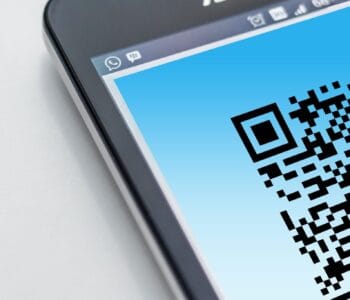
Free High-resolution close-up of a smartphone displaying a QR code on its screen. Stock Photo Cybersecurity

QR Code Scams: What They Are and How to…

Article Summary: A QR code scam, sometimes called quishing, hides a malicious web link inside a QR code. Because the link is buried in an image instead of written as text, it slips past the email filters that normally catch bad links, and scanning the code usually moves the victim onto a personal phone that sits outside the company’s security. Microsoft reported a 146% rise in QR code phishing during the first quarter of 2026.

QR codes are part of normal business now.

You scan them to see a menu, pay for parking, connect to Wi-Fi, or open a shared document.

 Attackers know that, and they have started hiding malicious links inside QR codes to get past the security tools that would normally catch a bad link in an email.

The technique has a name, quishing, and it works because a QR code is just an image.

Your email filter reads text, so a link encoded into a QR code can pass straight through. When you scan it, you usually do so on your phone, which sits outside most of the protection your work computer has.

This post covers what a QR code scam is, why it gets past your security, what the common ones look like, and the habits that protect your business.

What is a QR code scam?

A QR code scam is a phishing attack that uses a QR code in place of a written link.

Instead of a clickable URL your email security can inspect, the attacker encodes the web address into a square image.

You scan it with your phone camera, your phone opens the link, and you land on a page built to steal your login or your payment details.

The page on the other end is the same kind of fake you would see in any phishing attack, a login screen made to look like Microsoft 365 or a payment form that copies your bank. The QR code is only the delivery method that gets you there.

Why QR code scams get past your security

Two things make these scams effective.

First, the malicious link is hidden inside an image.

Most email security tools scan the text of a message for known bad links. A QR code is a picture, so the link inside it is not text the filter can read.

The UK’s National Cyber Security Centre points out that not all phishing-detection tools scan images, which is the reason criminals started using QR codes to disguise their links in the first place.

Second, scanning a code moves you onto your phone.

Your work computer probably has web filtering, endpoint protection, and DNS controls that block known bad sites.

Your personal phone usually has none of that. So the moment you scan, you step outside the protection your business pays for, often without realizing it happened.

How common are QR code scams?

The volume is climbing fast. In its report on email threats for the first quarter of 2026, Microsoft said it detected around 8.3 billion email-based phishing threats in those three months.

QR code phishing rose 146% across the quarter, from 7.6 million attacks in January to 18.7 million in March.

By the end of the quarter it had reached its highest monthly volume in at least a year.

Microsoft also found that most of these attacks arrived as PDF attachments, growing from 65% of QR code attacks in January to 70% in March.

The QR code sits inside a PDF, the PDF is attached to an email, and the whole thing looks like an ordinary document until someone scans it.

What QR code scams look like

These are the QR code scams that come up most often.

  • A “security” email. You get a message that looks like it is from Microsoft or your IT team, telling you to scan a code to re-enroll your multi-factor authentication or keep your account active. The code leads to a fake login page.
  • A shared document. An email says a colleague or client has shared a file, and you need to scan the code to view it. The page asks you to sign in first.
  • A fake invoice. A PDF invoice includes a QR code “to pay faster.” The code routes your payment to the attacker.
  • A delivery notice. A text or email about a missed package asks you to scan a code to reschedule. The US Federal Trade Commission has warned about this exact scam.
  • A sticker in the real world. Attackers print QR code stickers and place them over legitimate ones on parking meters, posters, and payment terminals. You think you are paying for parking, and instead you are handing your card details to a stranger.

How to protect your business from QR code scams

Protecting yourself against Quishing comes down to a few habits:

  • Be suspicious of QR codes in emails. A code that arrives by email, especially one that asks you to log in or pay, deserves the same caution as a strange link. The NCSC’s advice is to be wary of scanning QR codes inside emails, even though codes in places like restaurants are usually fine.
  • Check the web address before you act. When you scan a code, your phone shows the link before it opens. Read it. If the address is not the official site you expected, close it.
  • Go direct instead of scanning. If an email says your Microsoft account needs attention, open your browser and type the address yourself, or use a bookmark. Don’t rely on the code to take you to the right place.
  • Watch for urgency. Messages that threaten account closure or a fine “within 24 hours” are trying to rush you past your own judgment. That pressure is itself a warning sign.
  • Use phishing-resistant MFA. If a scam does capture a password, phishing-resistant multi-factor authentication (a passkey, a hardware key, or number-matching in an authenticator app) makes that password much harder to use.
  • Check physical codes for tampering. Before scanning a code on a parking meter or payment terminal, look for a sticker placed over the original.
  • Tell your team. Most people have never been warned about QR code scams. Send your staff a short message with a real example so they know what to watch for.

What to do if someone already scanned one

If you or someone on your team scanned a QR code and entered details on the page that opened:

  1. Change the password for that account right away, along with any other account that used the same password.
  2. Confirm multi-factor authentication is turned on for the account.
  3. Tell whoever manages your IT, so they can check for unusual sign-ins.
  4. If card or banking details were entered, call the bank and watch the account closely.

Acting quickly limits what an attacker can do with the details they captured.

Frequently Asked Questions

Are QR codes safe to use?

Most QR codes are safe. A code on a restaurant table or an official payment terminal is usually fine. The risk comes from codes sent in unexpected emails or texts, and from stickers placed over real codes in public. Treat those with caution.

What is quishing?

Quishing is phishing that uses a QR code instead of a written link. The word combines “QR” and “phishing.” The goal is the same as any phishing attack: to get you onto a fake page that captures your login or payment information.

Can antivirus or email filters stop QR code scams?

Not always. Many email security tools scan the text of a message for bad links, and a QR code hides its link inside an image, so it can slip through. Some products now scan images for codes, but you should not assume the scam will be caught before it reaches you.

Why is a QR code in an email more dangerous than a normal link?

A written link can be inspected by your email security and opened on a managed work computer. A QR code hides the link from those tools and pushes you to scan with your phone, which usually has far less protection than your work device.

What should I do if I scanned a scam QR code but didn’t enter anything?

If you closed the page without typing anything, the risk is low. Close it, don’t go back, and let your IT contact know so they can keep an eye out. If you did enter a password or payment details, follow the recovery steps above.

Featured Image Credit

This Article has been Republished with Permission from The Technology Press.
TSD Managed Services
Privacy Overview

This website uses cookies so that we can provide you with the best user experience possible. Cookie information is stored in your browser and performs functions such as recognising you when you return to our website and helping our team to understand which sections of the website you find most interesting and useful.