Free Asian woman recording a cooking tutorial with a smartphone and ring light. Stock Photo Cybersecurity

How to Protect Your Business Social Media Accounts from…

Article Summary: Treat every business social media account as a business system. Keep ownership and recovery details under company control, give each person their own access, require MFA, and remove former employees and agencies promptly. Review connected apps regularly and have a written recovery plan in case an account is compromised.

Business social media accounts often grow in bits and pieces.

One employee creates the Facebook Page. Someone else connects Instagram, and an outside agency is later given access to run advertising. Your LinkedIn Page may still be tied to the employee who set it up, while the recovery phone number for another account belongs to someone who left years ago.

Everything can continue working, so nobody has a reason to check how the accounts are set up.

That changes when an employee leaves, an agency relationship ends, or someone receives a password-reset alert they didn’t request. You may then discover that nobody knows which email address owns the account, who has full control, or how the business would recover access.

A compromised social media account can be used to publish scams, send fraudulent messages, access private conversations, or spend money through a connected advertising account. Even if the problem is fixed quickly, customers may have already seen posts or messages that appeared to come from your business.

The best time to sort out ownership and access is before any of that happens.

Make a list of every account connected to your business

Start by identifying every social media account your business owns or manages.

Include the obvious company pages, but also look for regional accounts, old campaign pages, YouTube channels, advertising accounts, and profiles created for individual locations or services.

For each account, record the platform, page or profile name, public handle, business owner, current administrators, recovery email address, recovery phone number, and any connected advertising or payment account.

You should also note which agencies, contractors, scheduling tools, or other applications can publish content or read information from the account.

This list gives you somewhere to start when an employee leaves or an account behaves unexpectedly. Without it, your IT provider may have to search old emails and ask several people just to work out who can still sign in.

Keep the list somewhere approved by your business, but don’t put passwords in the document. Passwords and recovery codes belong in a business password manager.

Keep ownership under the business’s control

An employee may have created a social media account using their personal email address or mobile phone because they were the person handling marketing at the time.

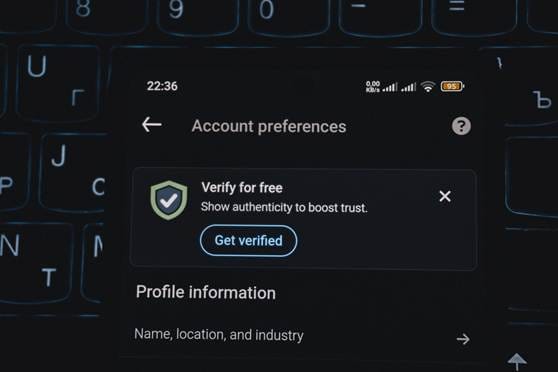
IMAGE SOURCE: https://www.pexels.com/photo/close-up-shot-of-a-smartphone-5956083/   

That arrangement puts the business in a difficult position if the employee leaves, loses access to the email account, changes their phone number, or becomes unavailable.

Check that the main recovery email address belongs to the business and will continue to exist when staff change. The same applies to the phone number used for account recovery or security alerts.

Avoid relying on an email inbox that only one employee can access. A monitored business address, such as a dedicated marketing or social media administration account, gives the business more control. Protect that mailbox with MFA and restrict access to the people responsible for account recovery.

Where the platform allows it, have at least two carefully chosen people who can manage access. Keep that group small, but make sure the business isn’t dependent on one person who might be unavailable when help is needed.

Recovery codes should also be stored securely. If one employee keeps the only copy on their phone or in a personal password manager, the business may lose its backup access when that person leaves.

Give each person their own access

If several employees manage the same social media account, they shouldn’t all use one username and password.

Most major platforms provide ways to assign access without sharing the main login.

Facebook Pages can give people full control, partial control, or task access. LinkedIn assigns Page permissions to individual member profiles, and LinkedIn states that Pages don’t have separate usernames or passwords. X provides a Delegate feature that lets an owner assign administrator or contributor roles without sharing the account password. YouTube also offers channel permissions, allowing several people to manage a channel through their own Google accounts.

These features give each person their own way to sign in. You can remove one employee or agency without changing access for everyone else, and you have a better record of who performed each action.

Sharing one personal profile is especially risky. On LinkedIn, for example, profiles are meant to belong to individual people, and sharing login details can lead to account restrictions.

Match each person’s access to their work

Someone who creates posts may not need permission to add administrators, change recovery details, or manage payment methods.

Give each person the lowest level of access that still lets them do their job. Your social media manager may need to publish content and reply to messages, while an analyst may only need to view reports. An outside agency running advertisements shouldn’t automatically receive full control of the company page.

Be careful when assigning the highest level of access. Meta warns that a person with full control of a Facebook Page can give access to others, remove existing administrators, or delete the Page.

Review permissions whenever someone changes roles. An employee who moved out of marketing two years ago may still have access simply because nobody removed it.

Require MFA for everyone with access

A password can be stolen through phishing, malware, password reuse, or a fake login page. MFA adds another check before the account allows someone to sign in.

Require MFA for every employee, contractor, and agency account that can manage your business pages. This includes people who only post content because their individual account can still become a way into the business page.

Use the strongest method the platform supports. Security keys and passkeys offer strong protection against phishing because they check that the person is signing in to the correct website. An authentication app is another good option.

SMS and email codes still provide more protection than a password alone, but they can be exposed through phishing, email compromise, or attacks against a mobile phone account. CISA recommends that businesses use phishing-resistant MFA where possible.

Don’t approve an unexpected sign-in prompt. If an employee receives an MFA request when they aren’t signing in, they should reject it and report it to the person responsible for the account.

Protect the email account used for recovery

Your recovery email can be just as important as the social media password.

If an attacker gets into that mailbox, they may be able to reset the social media password, approve security changes, and intercept warnings from the platform. They may then change the recovery details and make it harder for you to regain access.

Cyber.gov.au specifically recommends protecting the email address linked to a social media account with MFA.

The mailbox should have a unique password, MFA, and a current recovery method. Your IT provider should also check for unexpected forwarding rules, unfamiliar sign-ins, and changes to recovery details if you suspect either the email or social media account has been compromised.

Watch for fake warnings and support messages

Social media administrators regularly receive messages claiming that a page has broken a rule, used copyrighted material, lost verification, or needs to confirm its identity.

Some of these messages are phishing attempts. They send the recipient to a fake login page designed to steal a password and MFA code. Others ask the recipient to add a supposed support representative as an administrator.

Treat unexpected warnings carefully, even when they include your logo, page name, or details from a recent post.

Open the platform through its normal app or website and check the account’s support or notification area there. Don’t sign in through a link sent in a direct message, comment, or unexpected email.

Never send a password, verification code, backup code, or authentication-app code to someone claiming to provide support. Legitimate support staff shouldn’t need those details.

The April 2026 guidance from the Australian Signals Directorate tells organizations not to share passwords, registration codes, or verification codes, particularly with accounts claiming to represent a platform.

Review connected apps and scheduling tools

Your social media accounts may be connected to scheduling platforms, analytics services, competition tools, customer support systems, or advertising software.

These tools can save time, but some receive permission to publish posts, read messages, view account information, or manage advertising. If the third-party service is compromised, an attacker may be able to use the access you granted without needing your social media password.

Review connected applications in each platform’s security settings. Remove tools the business no longer uses and question any connection you don’t recognize.

For the applications you keep, check what each one can access. A reporting tool may only need analytics, while a scheduling platform may need permission to publish. It shouldn’t receive broader access without a clear reason.

CISA’s guidance on social media account protection recommends limiting third-party applications, reviewing their permissions, and protecting API keys or tokens that allow tools to act on the organization’s behalf.

Remove access when someone leaves

Social media access should be part of your normal offboarding process.

When an employee or contractor leaves, remove their page roles, advertising permissions, delegated access, and access to connected tools. If they knew a shared password, change it and review active sessions.

Don’t assume that removing someone from one platform also removes their access everywhere else. An agency may have separate permissions for the company page, advertising account, scheduling tool, analytics platform, and shared file storage.

Check them one by one.

You should also confirm that recovery email addresses and phone numbers still belong to people who work for the business. An old phone number can become a problem if the number is later reassigned to someone else.

Check active sessions and security alerts

Most social platforms let you review devices or locations where the account is currently signed in.
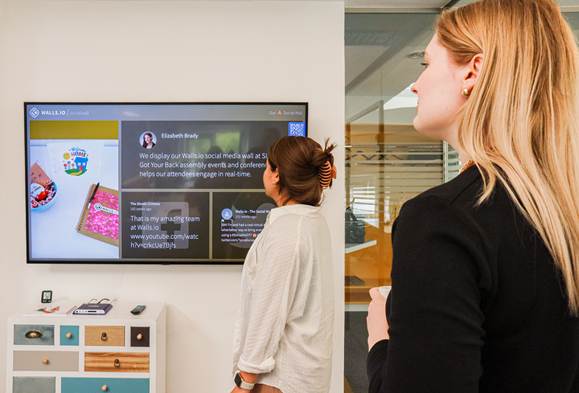
Image Source: https://www.pexels.com/photo/women-standing-in-the-office-and-looking-at-a-tv-screen-15467755/


Look for devices you don’t recognize, locations that don’t fit your team, and sessions that have remained active longer than expected. Remember that location information based on an IP address may be approximate, so an unfamiliar city doesn’t prove that an account has been hacked.

If something looks wrong, ask the relevant employee whether the session belongs to them. When it doesn’t, sign the device out, reset the affected credentials, and review recent activity.

Turn on alerts for new logins or security changes where the platform offers them. Send those alerts to an address that is monitored, rather than to an employee’s inbox that nobody checks when they’re away.

Pay attention to advertising and payment access

A compromised social account may also give an attacker access to advertising tools.

Review who can create campaigns, change spending limits, and manage payment methods. Remove cards or payment accounts that are no longer used, and turn on available alerts for spending or campaign changes.

If your platform separates page access from advertising access, review both. Removing someone from the public page doesn’t always remove them from the advertising account or business management system.

Ask whoever reviews company card statements to report unfamiliar social media charges promptly. A small charge may be the first sign that someone is testing whether an advertising account still works.

Decide what you’ll do if an account is hacked

Write down the recovery process before you need it. The plan should identify who will contact the platform, who will secure the linked email account, and who can approve a public statement if customers received fraudulent messages.

Keep links to the platform’s official recovery pages in your account register. That reduces the chance of an employee searching for help in a hurry and ending up on a fake support page.

If you believe an account has been compromised, use a trusted device to change the password and end unfamiliar sessions. Check whether the attacker added administrators, changed recovery details, or connected a new application.

Secure the linked email account as well. If you only reset the social media password while the attacker still controls the recovery mailbox, they may be able to take the account back.

Save screenshots and record the times of suspicious posts, messages, advertisements, and account changes. If fraudulent content was sent to customers, warn them through a channel you still control and tell them what they should ignore.

CISA recommends including compromised devices, unauthorized access, fraudulent posts, and exposed private communications in a social media incident response plan.

Review the setup regularly

Check social media ownership, administrators, connected apps, recovery details, and advertising permissions at least a few times a year.

Repeat the review whenever an employee changes roles, someone leaves, or you start or finish working with an outside agency. Security settings can also change as platforms add features, so include them in the review.

The goal is to make sure you can answer four questions without searching through old messages:

Who owns each account? Who can access it? How is that access protected? What will you do if the account is taken over?

If those answers are documented and current, recovering from a problem becomes much easier.

Frequently Asked Questions

Should only one person have administrator access?

Relying on one person can leave the business locked out if they’re unavailable or lose access. Keep the number of full administrators small, but make sure at least one other trusted person can help recover or manage the account.

Is an authentication app better than an SMS code?

Authentication apps are generally less exposed to SIM-swap attacks than SMS codes, while security keys and passkeys offer stronger protection against phishing. If SMS is the only MFA option available, it is still better than relying on a password alone.

Can an outside marketing agency have access?

Yes, but give the agency its own assigned access rather than sharing your main password. Limit its permissions to the work it performs and remove that access when the relationship ends.

Should we use a personal email address for account recovery?

Use an address controlled by the business wherever possible. A personal address can create recovery problems when an employee leaves or becomes unavailable.

What if the platform doesn’t support separate users?

Keep the password in a business password manager, restrict access to the smallest possible group, and change it when anyone leaves that group. Turn on MFA and document who controls the recovery methods.

Sources and Further Reading

Ask your IT provider to review who owns and manages your business social media accounts, especially if several employees or agencies have had access over the years. If you don’t have an IT provider, you can always reach out to us and we’ll help you secure them.

—

Featured Image Credit

This Article has been Republished with Permission from The Technology Press.

Free Black and white image showcasing a door lock with a key inserted, casting shadows. Stock Photo IT Management

Why Shared Logins Are a Security Risk for Your…

Article Summary: Every employee should use their own account wherever the software allows it. Individual accounts let you control permissions, use MFA properly, remove access when someone leaves, and see who performed each action. If a shared password cannot be avoided, store it in a business password manager, limit who can use it, and change it whenever someone’s access is removed.

Shared logins usually start with a small, practical decision. Someone needs access to a system, and sending the existing username and password seems like the quickest way to get the job done.

Maybe an employee needs to send an invoice, update your website, or check a customer record, so a colleague forwards the login the whole team uses.

The username might be accounts@yourbusiness.com, admin, or the name of an employee who left years ago. The password may already be saved in a browser, written in an internal document, or sitting in an old message thread.

The employee signs in, finishes the task, and gets back to work. From their point of view, the login did exactly what it was supposed to do.

The problems usually appear later.

A payment is changed, a customer record disappears, or someone signs in from an unfamiliar location. You check the account history, but every action appears under the same username. Several current employees know the password, former employees may still remember it, and nobody can say with confidence who used the account.

Shared logins often begin as a quick way to give someone access. Over time, they make the account harder to secure and much harder to manage.

Why businesses end up with shared logins

Most businesses don’t set out to create a collection of shared accounts.

A piece of software may have been purchased when the company had only two employees. The original owner created one login and passed it to the next person who needed it. As the team grew, sharing the existing password felt easier than creating separate accounts or reviewing the software plan.

Sometimes the software doesn’t support multiple users. In other cases, adding users costs more, or nobody has taken the time to configure the access already included with the service.

Shared accounts also appear when several people monitor the same email address. Staff may all sign in directly to sales@, support@, or accounts@ because nobody showed them how to use a shared mailbox or delegated access.

The arrangement can keep working for years. That doesn’t make it safe.

You can’t reliably see who did what

When five people use one login, the software usually records the activity under that shared account.

You may be able to see that the account signed in, edited a record, downloaded a report, or changed a payment instruction. You may not be able to tell which of the five people performed the action.

That missing detail causes problems even when everyone involved has acted properly. A mistaken change can take longer to trace because you have to ask several people what they were doing at the time.

It becomes more serious when the activity may be fraudulent. If someone exports customer information or changes bank details, you need to know whether the action came from an employee, a former employee, or an attacker using the shared password.

The UK National Cyber Security Centre recommends giving each employee a separate work account. Its guidance notes that shared accounts make it harder to connect an action to a particular person and can increase the amount of information exposed if the account is compromised.

One password can give access to everything in the account

A shared password has to reach every person who needs it.

IMAGE SOURCE: https://www.pexels.com/photo/office-team-looking-at-the-laptop-5466236/

That often means the password is copied into email, sent through chat, saved in a shared document, or entered on several computers. Each additional copy gives someone another place to find it.

The risk also grows as more people receive the password. One employee may enter it on an infected computer. Another may save it in a personal browser profile. Someone else may reuse it on a different service.

If an attacker steals the shared password, they receive the same access as everyone else using the account. And because the login is used by several people, an unfamiliar sign-in may be dismissed as another employee working from home or using a new device.

Named accounts make unusual activity easier to investigate. If an employee who normally works in one country suddenly signs in from somewhere else, your IT provider has a specific account to check and disable.

With a shared account, disabling the login may also stop several employees from working while the investigation takes place.

Shared logins make offboarding harder

When an employee with an individual account leaves, your IT provider can disable that account without affecting anyone else.

A shared login works differently. The former employee may still know the username and password, so removing their access usually means changing the password and giving the new one to everyone who remains authorized.

That creates another round of messages, saved passwords, and browser updates. If the account is connected to an application, device, or automated process, changing the password may also interrupt that connection.

Because of the inconvenience, businesses sometimes leave the password unchanged. The former employee’s access then depends on whether they remember the password or still have it saved on a device.

Current Australian government guidance says credentials should be changed when membership of a shared user account changes. With individual accounts, you can remove one person without changing how everyone else signs in.

MFA is harder to manage with a shared account

Multi-factor authentication, or MFA, asks for another form of proof after the password. That might be a code from an authentication app, a security key, or approval on a trusted device.

The second factor is meant to belong to the person signing in. The NCSC describes it as something that only the account holder can access.

A shared account can make that difficult. The MFA prompt may go to one employee’s phone even when someone else is trying to sign in. Staff may start forwarding codes, approving prompts for each other, or leaving a shared device in the office.

Some services allow several security keys or passkeys to be registered to one account, which is better than sharing a single authentication code. Even then, individual accounts are usually easier to manage because each person has their own login and their own MFA method.

You can remove one employee’s sign-in without changing anyone else’s.

Everyone gets the permissions of the shared account

When several people use the same login, each person can use whatever permissions have been given to that account.

An employee who only needs to view customer records may also be able to export them. Someone who needs to publish a website update may also have access to user accounts, billing information, or security settings.

Individual accounts let you match access to the employee’s job. Your bookkeeper can receive the financial access they need without becoming an administrator. A marketing employee can update website content without being able to install software or change every setting.

This is known as the principle of least privilege. Each person receives the access needed for their work and no more.

Cyber.gov.au’s guidance for businesses recommends individual user accounts, limited permissions, and regular access reviews. It also warns that shared accounts make suspicious activity harder to detect and investigate.

A shared mailbox doesn’t require a shared password

Several employees may need to read and reply to messages sent to an address such as accounts@yourbusiness.com or support@yourbusiness.com.

That doesn’t mean they all need to sign in using the same password.

Microsoft 365 shared mailboxes, for example, allow approved employees to open a common mailbox through their own accounts. Microsoft says that a shared mailbox isn’t intended for direct sign-in and recommends keeping sign-in blocked for the mailbox account.

Each employee signs in using their own identity, and an administrator gives them permission to use the shared mailbox. When someone leaves, their permission can be removed without changing access for the rest of the team.

Other business platforms offer similar features under names such as delegation, team access, user roles, groups, or shared inboxes.

Before sharing a password, check whether the software already provides one of these options.

Administrator passwords should never be passed around casually

Shared administrator logins deserve extra attention because they can change security settings, create users, access sensitive information, or remove other people’s access.

If several employees use the same administrator account for everyday work, a mistake or stolen password can affect far more of the business.

Give each administrator a named account wherever the system allows it. Staff should use standard accounts for normal work and switch to administrator access only when a task requires it.

Your IT provider should also review who currently has administrator access. Employees often keep permissions from previous roles because nobody removed them when their responsibilities changed.

What if the software only provides one login?

Some older applications, devices, and online services don’t support separate user accounts. Replacing the software may take time, especially if the system is tied to important business processes.

In that situation, keep the password inside a business password manager instead of sending it through email or chat. Give access only to the employees who need it and review that list when someone changes roles or leaves.

The password manager should require each employee to sign in with their own account and MFA. That gives you more control over who can retrieve the shared credential, and some business password managers record when a user views or uses it.

The NCSC recommends using delegated access instead of password sharing wherever possible. When sharing cannot be avoided, it advises limiting access to a small group, reviewing it regularly, and changing the password when someone is no longer allowed to use the account.

Assign an owner to every remaining shared account. That person should know who has access, what the account controls, where its recovery details are stored, and what would stop working if the password changed.

Service accounts need different handling

Your IT provider may mention service accounts when reviewing shared logins. These are accounts used by software, devices, or automated processes rather than by employees.

IMAGE SOURCE: https://www.pexels.com/photo/person-arranging-name-tags-with-laces-on-a-desk-7648472/  

For example, a backup application may use an account to reach a server, or a business system may use one to move information between two applications.

A properly managed service account is different from a password that several employees use to sign in. It should have only the permissions required for its task, and its credentials should be protected from employees who don’t need them.

Service accounts should also have a named owner, documented purpose, and a process for replacing their credentials if they’re exposed. Your IT provider can identify these accounts so they aren’t mistaken for normal employee logins or disabled without checking what depends on them.

How to replace shared logins without disrupting work

accounting software, customer systems, social media tools, website administration, email accounts, cloud storage, and any specialist applications used by their teams.

Old messages and spreadsheets may reveal accounts that were forgotten long ago. Your password manager, browser password stores, and software subscription records can also help.

Once you have the list, record who uses each account and why. That will tell you whether the software needs individual users, delegated access, a shared mailbox, or another arrangement.

Create named accounts where the platform supports them, then give each employee only the permissions required for their role. Set up MFA for each user and test the new access before removing the old login.

For accounts that still have to be shared, move the password into an approved business password manager. Limit access, document the owner, and change the password whenever someone leaves the authorized group.

Make the same review part of onboarding, role changes, and offboarding. Shared accounts usually return when a new employee needs access quickly and nobody knows the correct way to provide it.

Frequently Asked Questions

Is it ever acceptable to use a shared login?

Sometimes a device or older application only supports one account. If you cannot replace it immediately, restrict access to the smallest possible group, keep the password in a business password manager, monitor its use, and change it whenever access changes.

Can we share an account if MFA is enabled?

MFA reduces the risk of a stolen password, but it doesn’t restore individual accountability. Several people are still using one identity, so activity may remain difficult to trace. Use separate accounts whenever the service supports them.

Are shared email addresses unsafe?

The address itself isn’t the problem. Several employees can use a shared address safely when they access it through their own accounts. Avoid giving everyone the password to one mailbox.

Do we need to replace every shared account at once?

Begin with accounts that have administrator access or contain sensitive business, customer, employee, or financial information. Then work through the remaining accounts based on the access they provide and how many people know the password.

What should we do when an employee leaves?

Disable their individual accounts and remove their delegated access. If they knew any shared passwords, change those passwords and review the account for recovery methods, devices, sessions, or integrations that may still give them access.

Sources and Further Reading

If your business still relies on shared logins, ask your IT provider to review them and recommend a safer way to give staff access. If you don’t have an IT provider, you can always reach out to us and we’ll help you sort them out.

—

Featured Image Credit

This Article has been Republished with Permission from The Technology Press.

Free Two people analyzing business graphs and documents at an office desk. Stock Photo Cybersecurity

What to Ask a Software Vendor AfterThey Report a…

Article Summary: Confirm that the notice is genuine, then ask whether your business was affected, what information was exposed, when the breach happened, and whether any passwords, access tokens, or connected systems need attention. Keep written records of the vendor’s answers and involve your IT provider, insurer, or legal adviser when needed.

You’ve just found yourself on the receiving end of a data breach notice from one of your software vendors.

Maybe it’s the company that handles your payroll. It could be your accounting platform, CRM, cloud storage provider, or another service your team uses every day.

The email says the vendor discovered a security incident and has started an investigation. It may say that certain systems were accessed or that the incident has been contained. Then it gives you a support address and promises further updates.

But you’re left with a question the notice may not answer: What does this mean for your business?

The first notice often arrives before the vendor knows the full extent of the breach. Its security team may still be reviewing logs, identifying affected systems, and confirming what information was accessed. That takes time, but you may need to reset accounts, check transactions, warn staff, or contact your insurer before the investigation is finished.

You don’t have to wait for the final report before asking questions. Confirm that the notice is genuine, save a copy, and start gathering the information your business needs.

First, make sure the notice is genuine

Before you respond, confirm that the email really came from the vendor.

IMAGE SOURCE: https://www.pexels.com/photo/woman-using-laptop-while-talking-on-the-phone-7971729/  

Criminals sometimes take advantage of public breach announcements by sending fake password-reset emails or pretending to offer support. Someone who already uses the affected software is more likely to believe the message because the breach itself is real.

Avoid clicking links or calling numbers in an unexpected notice until you’ve checked it. Visit the vendor’s website by entering the address yourself, sign in through the customer portal you normally use, or contact a representative whose details you already have.

The UK National Cyber Security Centre recommends contacting an organization through details found on its official website when you’re unsure whether a message is genuine.

Once you’ve confirmed the notice, save the original message and any attachments. You may need them when speaking with your IT provider, insurer, legal adviser, or privacy contact.

Ask whether your business was affected

A breach at a software company doesn’t always affect every customer. The incident may have involved one product, database, office, or group of accounts.

Ask the vendor directly:

IMAGE SOURCE: https://www.pexels.com/photo/it-technician-working-in-data-center-server-room-37605911/

Was our account, company information, or user data affected?

If the vendor can’t give you a definite answer yet, ask whether your business is confirmed to be affected, possibly affected, confirmed not to be affected, or still under investigation.

That wording matters. “Still under investigation” does not mean your business is safe. It means the vendor has not finished checking.

Ask when you can expect a clearer answer and whether the vendor recommends taking any precautions while it investigates.

Find out what happened and when

The date the vendor announced the breach is only one part of the timeline.

Ask when the unauthorized activity began, when the vendor detected it, and when the affected systems were contained. If the vendor only knows an estimated date range, ask it to share that.

Those dates help your IT provider decide how far back to review your own records. You may need to check login activity, file transfers, account changes, invoices, payment instructions, or messages sent during the affected period.

You also need to understand what the unauthorized person was able to do.

Were they able to view information, copy it, change it, or delete it? Did they create new accounts, encrypt files, or use the vendor’s systems to contact customers?

The answer affects what you do next. Someone viewing a customer list creates a different risk from someone obtaining login credentials or gaining access to a system connected to your network.

Ask exactly what information was involved

A statement such as “customer information may have been affected” is too broad to guide your response.

Ask the vendor which information connected to your business was involved. Depending on the software, this could include employee or customer contact details, payroll information, payment records, identity documents, contracts, files, messages, support tickets, usernames, password hashes, login records, API keys, or security tokens.

Then ask whether all customers had the same information exposed.

Two businesses may use the same software in completely different ways. One company might use a platform only to store names and email addresses. Another might have uploaded contracts, identity documents, invoices, and payment information.

So the fact that both businesses use the same vendor doesn’t mean they face the same risk.

If the vendor says the information was encrypted, ask whether the encryption keys or any system capable of decrypting the information were also affected. Encryption can reduce the risk, but only if the attacker didn’t obtain what was needed to read the data.

Was the information viewed, copied, or simply present on an affected system?

This is where the vendor’s logs become important.

If the company says there is “no evidence” that your information was copied or misused, ask what records support that statement. You should also ask whether those records cover the entire period being investigated.

“No evidence of misuse” means the investigation has not found evidence. It doesn’t always mean the vendor can prove that nothing happened.

For example, the relevant logs may not have been retained for the full period, or they may not record every action an attacker could take. That doesn’t prove that data was stolen, but you should understand how much the vendor can confirm before deciding that no further action is needed.

Check passwords and connected systems

A password reset may be part of the response, but modern software often connects to other services without asking someone to enter a password each time.

Your vendor may use single sign-on, API keys, access tokens, security certificates, or integrations with your email, accounting, payment, file-storage, or backup systems.

Ask whether any of these connections were affected. Then ask which credentials need to be reset, revoked, or replaced.

Your IT provider should manage these changes where possible. Replacing the wrong key or disconnecting an integration without checking what depends on it can interrupt business systems or stop information from syncing.

If an employee used the same password for the breached service and another account, that password should be changed everywhere it was reused. A criminal who obtains one password can test it against email, banking, cloud storage, and other common services.

Ask what the vendor has done so far

A vendor may say that the breach has been contained. Usually, that means it has stopped the activity it knows about. The investigation and repair work may still be continuing.

Ask what the company has done to secure the affected systems.

Did it disable compromised accounts, revoke active sessions, patch a vulnerable system, rebuild affected servers, or replace exposed access keys? Has an independent security company reviewed the incident? And does the vendor currently consider the service safe to use?

You should also ask what work remains. Some early measures are temporary, so find out when the vendor expects to complete the permanent fixes.

NIST’s incident-response guidance explains that responding to an incident can involve several parties, including service providers, system owners, legal teams, and business leaders. Each party needs to understand what it is responsible for doing.

The vendor will handle its own systems. Your business may still need to protect its accounts, review activity, contact affected people, or meet contractual and legal requirements.

Find out what your business needs to do

Ask the vendor to give you customer-specific instructions in writing.

You may need to install an update, reset certain accounts, review activity logs, remove an integration, check recent transactions, or warn employees about related phishing attempts.

If an update is required, ask which versions of the software are affected and which version your business should now be using. Also confirm whether there is a deadline for completing the work.

Find out whether the attacker could use information from the breach to create convincing scams. Names, invoice details, support history, or the names of vendor employees could make a fraudulent message look genuine.

If the vendor has found related phishing emails, fake websites, or fraudulent support calls, ask it to share examples that you can pass to your staff.

Ask whether another company was involved

Software companies often rely on other providers to host systems, process payments, send emails, store backups, or run customer support. These other providers are sometimes called subprocessors.

If the breach happened at one of these companies, ask who it was, what service it provided, and what information it held. You should also find out whether it had direct access to your data or systems and whether the software vendor still uses it.

This information may be important even if you’ve never dealt directly with the other company. Your software vendor chose that provider and should be able to explain how the incident affected the service you use.

Agree on how you’ll receive updates

When an investigation lasts several days or weeks, getting information through a general support inbox can become frustrating. Each response may come from a different person, and you may have to explain the situation again.

Ask for a named contact or an incident response team that can answer follow-up questions. Confirm where official updates will be published and how often the vendor expects to provide them.

If the company doesn’t have new information yet, it should still be able to tell you when the next update will arrive.

Once the investigation is complete, ask for a final report. It should explain what happened, what information was involved, how the breach occurred, and what the vendor has changed since then.

The NCSC’s supplier security guidance recommends setting clear incident-reporting timescales, contacts, and responsibilities in supplier contracts. After the immediate response is over, check whether your existing agreement covers these points.

Keep a record of your response

Create a folder for the incident and keep the original notice, later updates, your questions, and the vendor’s answers.

You should also record what your business did, when each action was taken, who approved important decisions, and what advice you received from your IT provider, insurer, or legal adviser.

Having this information in one place makes it easier for everyone involved to work from the same facts. It also gives you a record of how your business assessed and handled the incident if questions come up later.

Privacy authorities in several countries require organizations to document certain breaches and their response. For example, the UK Information Commissioner’s Office says organizations should record the facts, effects, and remedial action taken.

Australia’s privacy regulator recommends a response based on containing, assessing, notifying, and reviewing the breach.

The exact requirements depend on where your business operates, what information was involved, and your role in handling that information.

Decide who else needs to be involved

The vendor’s notice may create responsibilities for your business as well.

Depending on what happened, you may need help from your IT provider, legal or privacy adviser, cyber insurer, senior management, or communications team. You may also need to contact affected customers, employees, regulators, or other organizations.

If the incident may be covered by cyber insurance, review your policy and notify your broker or insurer as required. Some policies require prompt notification or the use of approved legal, forensic, or incident-response providers.

If personal information was involved, get privacy or legal advice early. Notification requirements vary by location and may depend on the type of information, the likely harm, your contract with the vendor, and whether your business controls the information or processes it for someone else.

Under the GDPR, for example, a software provider acting as a data processor must notify the relevant controller without undue delay. The controller may still be responsible for assessing the breach and making any required notifications.

The European Data Protection Board’s guidance also explains that a vendor can provide information in stages as the investigation develops.

Frequently Asked Questions

What if the vendor says there is no evidence that our information was misused?

Ask what evidence and logs support that statement, whether those records cover the full period, and whether the investigation is complete. The answer may be reassuring, but you need enough detail to understand how the vendor reached it.

Should everyone change their password immediately?

Follow the vendor’s instructions and ask your IT provider which accounts are affected. If a password used with the vendor was also used elsewhere, change it on every affected account and stop reusing it.

Your IT provider should also check whether active sessions, API keys, or access tokens need to be revoked.

Does a vendor breach mean we must notify our customers?

Not always. It depends on whether your business was affected, what information was involved, where the affected people are located, your contracts, and the laws that apply.

Get appropriate privacy or legal advice before deciding.

Should we stop using the vendor?

A breach alone doesn’t automatically mean you should leave. Look at what happened, how much information was exposed, how the vendor responded, and whether the original problem has been fixed.

Pay attention to the quality of the vendor’s communication as well. If it repeatedly avoids reasonable questions or cannot explain how it has secured the service, you may need to reconsider whether you’re comfortable trusting it with your data

Sources and Further Reading

If a software vendor has reported a breach and you’re unsure what it means for your business, speak with your IT provider. If you don’t have one, you can always reach out to us and we’ll help you work through it.

—

Featured Image Credit

This Article has been Republished with Permission from The Technology Press.

Free Contemporary glass office building surrounded by lush green grass in daylight. Stock Photo Business

How to Make Sure Your Business Owns Its Domain…

Article Summary: Your business should control the account where its domain is registered. The registration details, recovery methods, billing information, renewal settings, and DNS access should not depend on one employee, contractor, web designer, or IT provider.

Once your website and email are working, the domain name rarely needs day-to-day attention. Renewal may happen automatically, and the registrar account can go untouched for years.

That is why ownership problems are often found when a supplier relationship ends, an employee leaves, or the domain fails to renew.

When a business first launches, an employee, web designer, marketing agency, or IT provider may register the domain while setting up the website. That arrangement can work for years. But if the registration stays in that person’s account, the business may need their help every time it wants to renew, transfer, or update the domain.

Sometimes the first sign of a problem is an email failure. Staff cannot send or receive messages, the website no longer loads, and nobody knows which company holds the registration.

You can avoid that situation by checking the domain now.

Why Control of Your Domain Matters

Your domain tells web browsers where to find your website. It also helps email services work out where messages sent to your company should go.

If the domain expires or its settings are changed, those services may stop working. Your website hosting and Microsoft 365 or Google Workspace subscription may still be active, but customers will not be able to reach them through your domain.

Someone who gains control of the domain may also be able to change its DNS settings. Depending on the setup, that could allow them to redirect website visitors, interfere with email delivery, or make services unavailable.

The registrar account therefore needs the same care as other company accounts that affect your operations.

What It Means to Own a Domain Name

A domain registration gives you the right to use a name for a set period, provided you keep renewing it.

ICANN defines the registrant as the person or organization that registers a domain and enters into an agreement with the registrar. The registrar is the company responsible for maintaining that registration.

For a business, control means that authorized people inside the company can renew the domain, update its details, recover the account, and approve a transfer. They should be able to do this without depending on a former employee or a supplier that no longer works with the business.

The exact rules depend on the domain ending. ICANN sets policies for generic domains such as .com, .net, and .org. Country-code domains such as .uk, .au, .ca, and .de follow rules set by their local registry operators. ICANN confirms that these policies vary between country-code domains.

Find Out Which Company Holds the Registration

You cannot confirm who controls the domain until you know which registrar holds it..

IMAGE SOURCE: https://www.pexels.com/photo/a-close-up-shot-of-a-person-holding-keys-8112169/   

For most generic domains, enter the address into the ICANN Lookup tool. The tool should show the registrar, registration and expiry dates, current domain status, and nameservers.

ICANN’s tool now uses the Registration Data Access Protocol, or RDAP. This replaced WHOIS as the main source of generic domain registration information in January 2025. You may still hear people refer to this as a WHOIS search.

For a country-code domain, you may need to use the lookup service provided by the registry for that country. Your IT provider can help you find it.

The registrar’s name may be unfamiliar. Some hosting companies and web agencies sell domains through a reseller agreement, while another company acts as the registrar. ICANN explains how registrars and resellers work together.

Your website host may also be different from the registrar. It is quite normal for the domain registration, DNS, website, and email to be handled by several companies. You just need to know who handles each one.

Check Who Can Access the Registrar Account

Once you know the registrar, confirm that someone in your business can sign in to the account and see the domain.

Access to WordPress, a website builder, or a hosting account does not provide control over the registration. Those accounts may let you edit the website without letting you renew or transfer the domain.

Inside the registrar account, confirm that the domain appears in the account and that the business can change its contact details, payment method, renewal settings, and nameservers.

The account itself should also be held for the business. Its main email address and recovery information should not belong to an employee, contractor, or supplier.

A web designer or IT provider may manage domains for several clients through one account. They cannot give you the password to that account because it would expose their other customers. In that situation, ask them to move your domain into a separate account created for your company.

They can still help manage the domain after the move. Your business will simply have its own account and recovery process.

Check the Registration Details

The next step is to check who appears in the registrar’s private records.

Look for the registered name holder, organization, address, phone number, and email address. Registrars use different labels, and the information they collect varies by domain type.

Where the registrar records an organization, it should identify your company rather than a web developer, agency, employee, or unrelated business.

The public lookup record may not show this information. ICANN’s current registration data policy allows personal information to be withheld from public results, and privacy services can replace the visible contact details.

A blank or redacted public record can therefore be normal. The information inside the registrar account and the registration agreement will tell you more than the public result.

Some businesses also use a proxy service. With this type of service, the proxy provider may appear as the registered holder while the business receives the right to use the domain. If your domain uses a proxy, read the service terms and confirm that your company is the customer. You should also know how to renew, recover, and transfer the registration.

Use Contact Details the Business Will Keep

Registrar contact details can become outdated after an employee leaves or a supplier changes. When that happens, renewal and security messages may go to someone who no longer works with the company.

Use an email address that the business controls and checks. Avoid an employee’s personal address or an account owned by a supplier.

It is also worth setting up a recovery method that will still work if your main business email is unavailable. Depending on the registrar, that may be a second email address, phone number, recovery code, or identity-checking process.

At least two trusted people should know which registrar the company uses and how account recovery works. Where the registrar allows separate administrator accounts, give each person their own access. If it only provides one login, store the credentials in a company password manager rather than sending them by email or saving them in a shared document.

Make Sure the Domain Will Renew

After confirming the account and contact details, check the expiry date and renewal settings.

Image Source: https://www.pexels.com/photo/a-person-writing-on-calendar-6172482/

Turn on automatic renewal and use a payment method maintained by the business. An employee’s personal card or a supplier’s card may stop working without anyone inside the company knowing.

Auto-renewal still needs checking because cards expire and payments can be declined. Add a calendar reminder before the renewal date so someone can confirm that the payment went through.

ICANN requires registrars to send renewal reminders for generic domains, but you should not depend on those emails alone. Country-code domains may follow different rules, and reminders will not help if they go to an old address.

If the registration expires, the website and email linked to it may stop working. Some domains enter a grace or recovery period, but the length, cost, and process vary. Renewing before the expiry date is much easier than trying to recover the domain afterward.

Check Who Controls the DNS

The registrar and DNS may be managed through separate accounts, so the DNS account needs to be checked as well.

DNS tells internet services where to find your website and where to deliver your email. The nameservers shown in the domain registration indicate which provider manages those records.

A common arrangement might place the domain with one registrar, the DNS with a cloud provider, the website with a hosting company, and the email with Microsoft 365 or Google Workspace. There is nothing wrong with that setup, provided the business knows which company handles each service and how to recover the accounts.

Ask your IT provider to confirm that the nameservers are correct and that the DNS account is protected. The company records should include the provider’s name, the approved account users, and the recovery process.

The UK National Cyber Security Centre recommends that organizations use company-controlled contact details and make sure more than one trusted person can manage the domain. Its domain management guidance also recommends monitoring important DNS records for changes.

Your IT provider can continue managing the DNS day to day. Keep enough information inside the business to authorize changes and recover the account if the provider becomes unavailable.

Protect the Registrar Account

Once the ownership and recovery details are correct, secure the account.

Use a unique password and store it in the company password manager. Turn on multifactor authentication using the strongest option the registrar offers.

Review the account users and remove former employees, agencies, or providers that no longer need access. If the registrar offers alerts for DNS changes, transfers, contact updates, or renewals, turn them on.

Enable the domain’s transfer lock too. The registrar may call it “Registrar Lock” or “Client Transfer Prohibited.”

ICANN explains that a transfer lock can help prevent an unauthorized transfer. It cannot protect an account on its own, since someone who takes over the registrar login may be able to remove the lock. Keep MFA and account recovery details up to date as well.

What to Do If a Supplier Controls the Domain

If a web designer, agency, or IT provider controls the domain, plan the move before ending that relationship.

Ask for the registrar’s name, the expiry date, the registered holder’s details, the current nameservers, and the process for moving the domain into an account controlled by your company.

Create the new account with company details, add the correct recovery information, and turn on MFA. The current provider can then move the domain into that account or help transfer it to another registrar.

Moving the registration does not require moving the website or email. The existing nameservers can normally remain in place during the transfer. An accidental change to those settings could cause an outage, so ask your IT provider to monitor the website and email while the move takes place.

If a former employee or supplier refuses to cooperate, collect any contracts, invoices, payment records, registration emails, and messages showing that the domain was registered for your business. Contact the registrar and ask what evidence it needs. If the dispute concerns ownership or contract terms, you may also need legal advice.

Review the Domain Once a Year

Once the records are correct, schedule a yearly review. Confirm the registrar, expiry date, payment method, auto-renewal setting, registration details, recovery options, MFA, transfer lock, nameservers, DNS provider, and account users.

Run the same check when you change IT providers, web companies, or marketing agencies. It should also be part of the offboarding process when an employee with access leaves.

Keep the results with your IT records. Passwords and recovery codes belong in the company password manager, not in the document itself.

Frequently Asked Questions

How can I find out who registered my business domain?

Use the ICANN Lookup tool for most generic domains or the relevant registry’s lookup service for a country-code domain. The result should identify the registrar, although the registrant’s contact details may be hidden.

Does a private registration mean my business does not own the domain?

No. Privacy services often hide contact information from the public. Sign in to the registrar account and check the private registration details and service agreement.

Does my web designer own the domain if they registered it?

That depends on the registration details and your agreement with the designer. Check who appears as the registered holder, whose account contains the domain, who pays for it, and what the contract says. Ask for the domain to be moved into a business-controlled account if it currently depends on the designer.

Should my domain and website hosting be with the same company?

They do not have to be. Many businesses keep the domain registration, DNS, website hosting, and email with different providers. Record which provider handles each service and how your company can recover every account.

What happens if my domain expires?

Your website and business email may stop working. You may have a limited period in which to recover the registration, sometimes at an extra cost. The rules differ between registrars and domain types, so renew it before the expiry date.

Sources and Further Reading

Ask your IT provider to confirm who holds your domain registration and who can recover the account. If you do not have an IT provider, you can always reach out to us and we’ll help you.

—

Featured Image Credit

This Article has been Republished with Permission from The Technology Press.

Free A woman appears stressed while working on a laptop in her modern office. Stock Photo Cybersecurity

How Hackers Keep Access to Your Email After You…

Summary: Changing the password blocks someone from signing in with the old password. However, they may still have an active session, a forwarding rule, access through a connected app, mailbox permissions, or a recovery method they added.

When someone gets into a business email account, changing the password should happen immediately. Once that is done, the account still needs a full check because other forms of access may remain.

During the time they had access, the attacker may have created a forwarding rule, approved a connected app, added a sign-in method, or granted access to another account. They may also have a browser or email app that is still signed in.

Email deserves particular care because it is connected to so many other services. Password-reset messages for accounting software, cloud storage, social media, and other business systems often arrive by email. Someone who can still read the inbox may be able to reach those accounts too.

That is why current recovery guidance from Microsoft, Google, and the UK National Cyber Security Centre includes several checks beyond changing the password.

Why a New Password May Not Remove Every Form of Access

Email services use sessions so you do not have to enter your password every time you open a message. After you sign in, the service gives your browser or email application a cookie or token that confirms the login has already been approved.

The service can continue accepting that session until it expires or is revoked. This means someone who signed in before the password changed may stay connected for a period of time, depending on the provider and the type of session.

The providers handle password changes differently. Google says that changing a password signs the user out in most places, but it lists exceptions that can include some devices and third-party applications. Google Workspace administrators also have separate controls for suspending an account and resetting its sign-in cookies.

Microsoft takes a similar approach for business accounts. Its guidance tells administrators to disable the affected account during the investigation and revoke active sessions separately.

The password change also leaves mailbox settings in place. A forwarding rule, delegate, or recovery method added while the account was compromised will remain until someone finds and removes it.

An Existing Session May Still Work

An active session is one of the first things your IT provider should check.

IMAGE SOURCE: https://www.pexels.com/photo/smartphone-screen-showing-account-verification-alert-33440144/  

If the attacker signed in through a browser or email application, that session may still hold a valid token. Malware on an employee’s computer can also steal a session cookie and send it to someone else.

A stolen cookie may allow the attacker to use a session that has already passed the normal login checks. In that situation, they may not need to enter the new password.

The administrator should use the email provider’s tools to revoke the account’s active sessions and tokens. The exact name of the control varies between services. It may appear as “revoke sessions,” “reset sign-in cookies,” “sign out everywhere,” or “log out of all devices.”

If malware may be present on the employee’s computer, use another device to begin the recovery process. The affected computer should be checked before the employee signs in again.

Forwarding Rules Can Keep Sending Out Your Email

After closing the active sessions, check what was changed inside the mailbox.

An attacker can create a forwarding rule that sends a copy of every new email to another address. They may also use a filter that only forwards messages containing terms such as “invoice,” “payment,” “bank,” or “password reset.”

More selective rules are harder to notice because most email continues arriving normally. The attacker only receives the messages they are interested in.

Rules can also hide activity. For example, a rule may move security warnings, customer replies, or questions about a payment request into a folder the employee rarely checks.

Both Microsoft and Google tell users and administrators to check forwarding settings and mailbox rules after a suspected compromise.

Microsoft 365 administrators should perform this check through the administration tools, not only from the employee’s Outlook settings. Microsoft specifically recommends reviewing all inbox rules, including hidden ones.

A Connected App May Have Permission to Read the Mailbox

Forwarding rules are one way to keep receiving email. A connected application can provide another.

Image Source: https://www.pexels.com/photo/creative-photo-of-a-lock-key-16564254/

Businesses commonly connect email accounts to scheduling tools, customer management systems, mobile email apps, document services, and browser extensions. These connections often use OAuth.

When a user approves an OAuth request, the application receives permission to access certain parts of the account. The application does not need to store the user’s password.

Attackers can misuse this process by creating an application that looks genuine and asking the user to approve it. Microsoft explains that a harmful app consent grant can provide access to email, files, contacts, and forwarding rules.

Some app connections may stop after a password reset, while others need to be removed separately. Review every application connected to the account and remove anything the business does not recognize, use, or approve.

An application’s name and logo do not confirm who created it. Your administrator should check the company behind it and the exact permissions it received.

Someone Else May Have Mailbox Permissions

Business email platforms allow one person to access another person’s mailbox. An executive may give an assistant access, for example, or several employees may work through a shared mailbox.

This type of access is called delegation. A delegate signs in with their own account, so changing the mailbox owner’s password does not automatically remove the delegate.

Exchange Online supports Full Access, Send As, and Send on Behalf permissions. Gmail also supports delegated mailbox access.

Check every person and group with access to the mailbox. Confirm why they need it and remove any permission that the account owner or administrator cannot explain.

Sending permissions need attention too. Someone with “Send As” access may be able to send messages that appear to come directly from the mailbox, even if they cannot read its contents.

Check Recovery and Sign-In Methods

The attacker may have added a phone number, recovery email address, authenticator app, passkey, or security key while they controlled the account.

A recovery method could help them regain access later. An authentication method might also allow them to approve another sign-in without knowing the new password.

Microsoft tells administrators responding to a compromised mailbox to review the user’s registered MFA devices and remove anything suspicious. Google also advises users to check recovery details, recent security activity, devices, and sign-in methods.

Compare every entry with the account owner. Remove anything that neither the employee nor the administrator recognizes.

How to Secure a Compromised Email Account

Some of the settings involved are only visible through the business administration tools. Contact your IT provider or email administrator rather than asking the employee to handle the entire cleanup from their inbox.

Disable or Suspend the Account

The administrator may temporarily disable or suspend the account while checking it. They should also revoke active sessions and tokens so the attacker is signed out.

The employee may lose access for a short time, but leaving the account active gives the attacker more time to read, send, or delete email.

Change the Password

Set a password that has not been used for another account. If the employee reused the old password elsewhere, those accounts need new passwords as well.

Do not send the new password to the affected mailbox. Use a phone call, an approved password manager, or another method your business trusts.

Some older applications use separate app passwords. Microsoft’s current guidance notes that these are not automatically revoked when the main password changes, so your administrator should remove or replace them if they are present.

Review the Mailbox and Account Settings

Check forwarding addresses, inbox rules, filters, blocked addresses, delegates, sending permissions, signatures, automatic replies, and connected applications.

Then review the registered devices, phone numbers, recovery addresses, authenticator apps, passkeys, and security keys.

POP and IMAP access should also be checked. Some businesses still use these settings for approved email applications, so confirm how the account is used before disabling them.

Find Out What Happened

Once access has been removed, work out what the attacker did while they were inside.

Check the Sent, Deleted, Drafts, Junk, and Archive folders. Look for messages the employee did not write, replies they did not see, password-reset emails, and changes to payment instructions.

The administrator should review sign-in logs, audit records, email traces, and security alerts. Start the search before the first known warning because the original compromise may have happened earlier.

A login from an unfamiliar location does not prove that someone else used the account. Mobile networks, VPNs, and internet providers can affect location data. The device, time, IP address, application, and activity around the login provide more useful context when considered together.

Contact Anyone Who May Have Received a Fraudulent Message

If the account sent false messages, contact the recipients through a trusted channel. Tell them which messages were not genuine and whether they need to change a password, delete a file, or ignore a payment request.

Pay particular attention to messages involving bank details, invoices, payroll, gift cards, or password resets.

If money may have been sent to the wrong account, contact the bank or payment provider immediately. Use a phone number from its official website or your existing records rather than one found in the email conversation.

Secure the Account Before Returning It to the Employee

Once the unknown access, settings, and permissions have been removed, the administrator can return the account to the employee.

Require MFA before the employee signs in again. Where the email platform supports them, passkeys and physical security keys provide better protection against phishing than codes that can be entered into a fake login page.

MFA helps prevent another login with a stolen password. The earlier checks are still required because MFA does not remove existing forwarding rules, delegates, connected apps, or recovery methods.

How to Reduce the Risk of Another Compromise

Ask your IT provider to block automatic forwarding to outside addresses unless your business has a reason to allow it. Microsoft 365 and Google Workspace also provide controls for limiting which third-party applications employees can connect.

Require MFA for every email account, especially administrators and employees who handle payments or sensitive information. Use passkeys or physical security keys where the platform supports them.

Employees should report unexpected MFA prompts, unfamiliar login alerts, mailbox changes, and messages sent from their account that they do not recognize. Report these signs as soon as they appear so your IT provider can check the account before more email is sent or deleted.

Frequently Asked Questions

Does changing an email password sign out every device?

It depends on the provider. Some services sign users out of most sessions after a password change, while others provide separate controls for revoking sessions and tokens. Follow the account-compromise instructions for the email service your business uses.

Can someone still receive my email after I change the password?

Yes. A forwarding rule or filter may continue sending them copies of your messages. Check all forwarding settings and mailbox rules.

Can an app access my email without knowing my password?

Yes. An app may receive permission through OAuth, which allows it to access approved account data without storing the password. Review and remove any connected application the business does not recognize.

Should I delete a compromised email account?

The account is usually disabled or suspended while it is secured and investigated. Deleting it could remove information your IT provider needs to work out what happened.

Is MFA enough to secure the account?

No. Local administ MFA helps prevent new sign-ins, but it does not remove mailbox rules, app permissions, delegates, recovery methods, or active sessions that already exist. Those need to be checked separately.

Sources and Further Reading

If you think someone still has access to your business email, contact your IT provider immediately. If you do not have an IT provider, you can always reach out to us and we’ll help you.

—

Featured Image Credit

This Article has been Republished with Permission from The Technology Press.