 Productivity
Handy Tips to Optimize a Dual-Monitor Setup for the…
Two monitors are often better than one when it comes to getting things done efficiently. A dual-monitor setup can significantly enhance your productivity. This is true whether you’re a gamer, a creative professional, or an office wiz who loves to multitask.
A study by Jon Peddie Research found that dual displays can increase productivity by 42%. But it’s not as simple as just setting up an extra screen.
It’s common for people to feel “off kilter” when trying to work from two monitors. They may even find it harder despite having more screen real estate. The cause is usually the setup. They either have the screens positioned wrong or aren’t optimizing the settings.
We’ll dive into some dual-monitor setup best practices. These should help you improve your two-screen experience and take it to the next level.
Best Practices for a Great Two-Screen Setup
1. Match Size and Resolution
Before you jump into the excitement of a dual-monitor setup do some matching. Make sure your monitors are well-matched with each other. Try to use monitors of the same size and resolution. This helps to avoid any jarring differences in image quality or screen real estate. Your eyes will thank you for the consistency!
2. Get the Right Cables
Picture this: you’ve set up your dual monitors, and you’re all excited to fire them up. But your cables don’t fit the ports! To avoid this headache, check your device outputs and inputs to ensure you have the right cables on hand. HDMI, DisplayPort, and DVI are common options. But verify which ones you need for optimal performance.
3. Positioning is Everything
Now that you’ve got your monitors ready to go, let’s talk positioning. Placing your monitors correctly can make a world of difference. This is true for both your comfort and productivity.
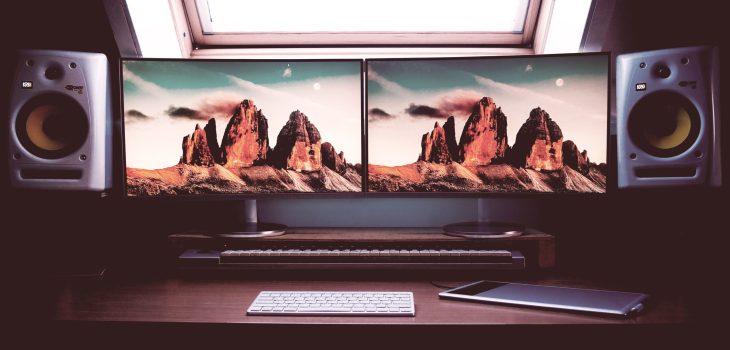
Ideally, arrange them side by side, keeping the top edges aligned. Adjust the angle to reduce neck strain, and make sure the distance is comfortable for your eyes. After all, you’ll be spending a lot of time in front of these screens.
4. Embrace the Extended Desktop
It’s tempting to mirror your displays and have the same content on both screens. But that’s not the full potential of a dual-monitor setup. Embrace the extended desktop feature. It allows you to have separate content on each screen.
This means you can work on a document on one screen. And browse the web or handle email on the other—double the productivity!
5. Focus on Taskbar Tweaks
A cluttered taskbar can quickly turn your dual-monitor setup into chaos. Keep things organized. Set the taskbar to display only the active applications on the screen they’re open in.
Steps:
- Right-click on the taskbar, go to “Taskbar settings.”
- Open “Taskbar behaviors”
- Adjust the setting, “When using multiple displays, show my taskbar apps on.” Set it to the taskbar where the window is open.
No more hunting for the right window across two taskbars.
6. Leverage Shortcuts
Did you know that Windows has some nifty window-snapping shortcuts? Use the Windows key plus the left or right arrow to snap an application to one side of the screen. It will fill exactly half of it.
This is perfect for comparing documents. As well as writing while researching or watching a video while working. It’s a productivity boost that you won’t be able to live without once you’ve tried it!
7. Gaming in Style
If you’re a gamer, a dual-monitor setup can bring your gaming experience to a whole new level. Many modern games support dual monitors, allowing you to have an extended field of view. This is especially true in racing and flight simulation games. Just remember to adjust your graphics settings accordingly for the best performance.
8. Mastering Multitasking
Multitasking is where dual monitors truly shine. For example, you can have your design software open on one screen and your reference images on the other.
Writers can have research materials on one screen. With their writing software on the other. The possibilities are endless. It’s like having a productivity superhero at your disposal! Explore workflows that make the most of both screens.
9. Tame the Cable Chaos
Dual monitors mean double the cables. If you’re not careful, it can quickly turn into a cable jungle. To keep things tidy, invest in some cable management solutions. Such as adhesive cable clips or cable sleeves. Your setup will look cleaner. It’ll also be easier to make changes or upgrades in the future.
10. Don’t Forget the Ergonomics
As you immerse yourself in your dual-monitor world, remember to consider ergonomics. Ensure that your monitors are at eye level. And your keyboard and mouse are at a comfortable height and angle.
Good ergonomics can prevent strain and discomfort. This allows you to enjoy your setup for longer without any aches or pains.
Need Help with Hardware or Software Setup?
Why struggle with hardware or software setup? Come to the pros to save time and avoid frustration.
Give us a call today to schedule a chat about your technology needs.
This Article has been Republished with Permission from The Technology Press.