 Microsoft
7 Pro Tips for Microsoft 365
Microsoft 365 is the most popular of all major office productivity software. It has 48.8% of the global market share, just edging out Google’s apps, by a couple of percentage points.
It’s used by individuals, small & mid-sized businesses, and larger enterprise organizations. It does everything a modern office needs. Including from word processing and spreadsheet work to cloud storage and video conferencing.
Because Microsoft 365 is such a vast platform, with over 20 apps in total, it can be easy to miss helpful features. People tend to stick with what’s familiar. But this often causes them to miss out on time and money-saving bonuses in M365, beyond the core apps.
Some of the many apps you get, depending on your subscription plan, include:
- Excel
- Word
- Powerpoint
- Outlook
- To Do
- OneDrive
- Teams
- Forms
- Defender
- SharePoint
- Yammer
- Lists
- Access
- Bookings
- Intune
- Planner
- Visio
- And more
Want to get more value from your subscription? We’ll go through some of the most helpful apps and features in Microsoft 365 that you may now know about.
Get More Out of M365 With These Tips
1. Skip the Menu Bar by Using Search to Find Functions
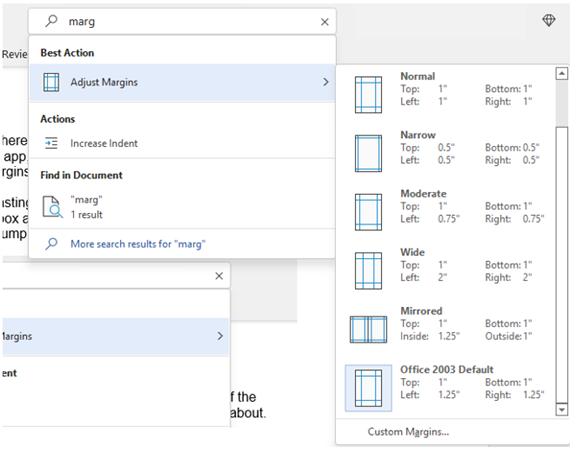
We’ve all been there at one time or another. You know there is a way to do something in an app, but you can’t find it in the menu. For example, trying to change your margins in Microsoft Word to give you more space on the page.
You can stop wasting time clicking through one tab after another, and instead, use the search box at the top. It’s not just for searching for help topics. You can use a search to quickly jump to settings like margins, page orientation, and many more.
2. Leverage the Free Stock Images, Icons & Videos
Most businesses need to have nice-looking images from time to time. They’re used on websites, brochures, and presentations. But finding good business images can be expensive.
You can’t just do a Google search to find them because they may be copyrighted. You need to have images that you can use commercially without any problems.
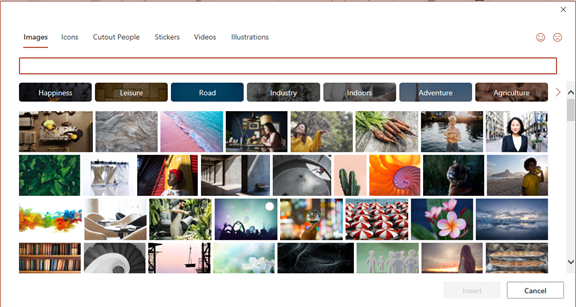
Inside Word, Excel, and PowerPoint you have a treasure trove of images. These are free to use in your marketing. You also have videos, icons, and even 3D models, all there for the picking.
Find them by going to Insert > Pictures > Stock Images
Use the tab at the top to tab between the different media. Then, click to insert it directly into your document, spreadsheet, or presentation.
3. Save Time by Using Data Types in Excel
Researching things like the population of a city or the nutrition value of a new menu can take days. Did you know that inside Excel you have access to several databases?
You can leverage facts and figures stored inside Excel’s “data types.” They include topics on everything from chemistry to yoga poses. Use data types to populate tons of data in seconds for various topics.
- Start by adding your list (e.g., a list of menu items)
- Highlight your list.
- Then, click the Data tab.
- In the Data Types window, choose the type of data it is (e.g., Food, Plant, etc.).
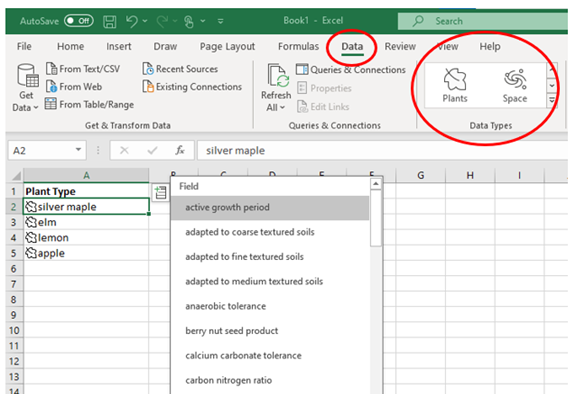
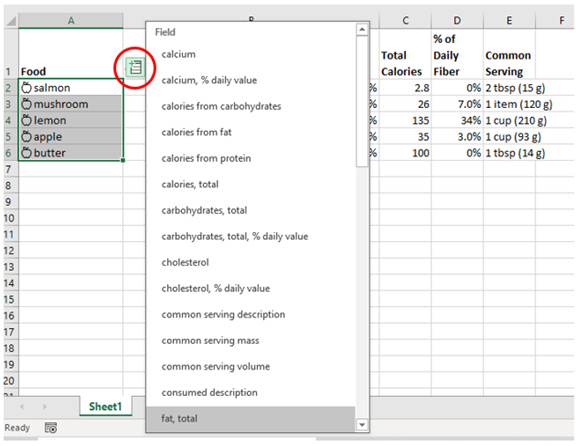
- Next, click the small database icon that appears at the top of the list.
- Choose the type of data you want.
- The details will populate into the next open column on the right for each list item.
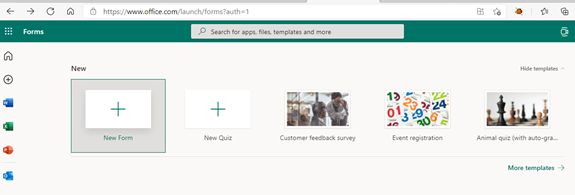
4. Save Time on Customer Surveys with Microsoft Forms
Microsoft Forms is one of the best-kept secrets of M365. This cloud-based survey and form builder makes it simple to send out surveys to people. You get the results back as soon as they click “submit” on the cloud-based form.
You can even download the results directly to Excel. Using them for graphing or uploading them into a software template.
5. Use PPT’s Presenter Coach to Improve Your Skills
Do you worry when it comes time to give a presentation to clients or your own team? Not everyone feels comfortable about public speaking, even if it’s virtual.
PowerPoint can help with a handy AI-powered feature called Presenter Coach. Turn this coach on when practicing your presentation. It will give you tips on your pacing, use of filler words (e.g., umm), repetitive language, and much more!
Look for the “Rehearse with Coach” option on the Slide Show menu.
6. Save Recurring Email Text in Outlook’s Quick Parts
Do you have certain emails you send to customers that have the same paragraphs of text in them? For example, it might be directions to your building or how to contact support.
Stop retyping the same info every time. Outlook has a feature called Quick Parts that saves and then inserts blocks of text into emails.
- Create a Quick Part by highlighting the text to save in an email.
- On the Insert Menu, click Quick Parts.
- Save Quick Part.
When ready to insert that text into another email, just use the same menu. Then click to insert the Quick Part.

7. Create a Keyboard Shortcut to Paste as Unformatted Text
Keyboard shortcuts are great for saving time. But there’s not always one there when you need it. One handy keyboard shortcut to add for MS Word is to paste as text only. This method removes any formatting that copied text might have had so your document isn’t messed up.
Here’s how to make a keyboard shortcut for this:
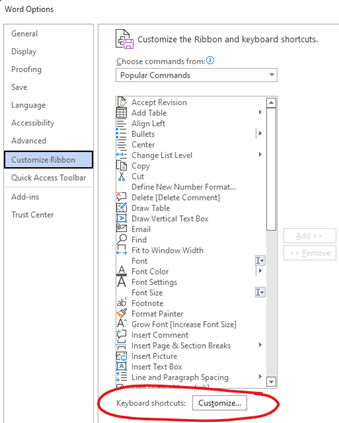
- In Word, click File> Options.
- Click Customize Ribbon.
- At the bottom of the panel, next to Keyboard shortcuts, click Customize.
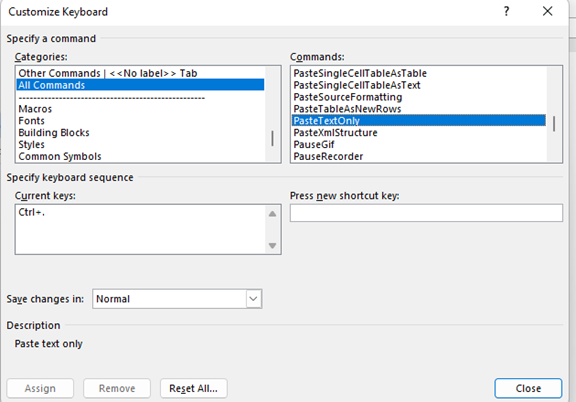
- Scroll in the left pane to All Commands.
- Look for “PasteTextOnly”
- Type your keyboard command, then click Assign.
Need Help Optimizing Microsoft 365?
Microsoft 365 has many security-enhancing, time-saving, and dollar-saving features. Learn how else we can help by scheduling a consultation today.
This Article has been Republished with Permission from .